![JN_Logo_Long-White@1x.png]](https://support.jobnimbus.com/hs-fs/hubfs/JN_Logo_Long-White@1x.png?height=40&name=JN_Logo_Long-White@1x.png)
To add taxes to your JobNimbus account:
-
Click on the three lines in the top left corner and choose Settings from the dropdown menu.
-
Within the Financials Settings menu, click on Taxes
- Click the blue +Add Tax button

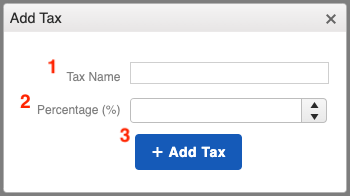
In the "Add Tax" window, you can:
- Name the tax according to what purpose it serves
- Give your tax a percentage amount
- +Add Tax to save
After your tax is saved, when creating an Estimate, for example, you'll be able to select the taxes in the Estimate details.

If you turn on QuickBooks later, Invoices and Estimates that use a tax rate added here won't sync to QuickBooks until you change them to a tax rate imported from QuickBooks. Check out What Constraints Will I See With the QuickBooks/JobNimbus Integration? to learn more.
If You Have QuickBooks Enabled
You will need to manage your taxes directly within your QuickBooks account; the ability to add taxes in JobNimbus will become locked and you will see the following message when opening the Taxes tab in your settings:
