![JN_Logo_Long-White@1x.png]](https://support.jobnimbus.com/hs-fs/hubfs/JN_Logo_Long-White@1x.png?height=40&name=JN_Logo_Long-White@1x.png)
On This Page
If you want to add your own brochures or warranty pages to an Estimate, check out How Can I Incorporate External PDFs Into My Estimates?
Turning On Page Numbers
Page numbers are a setting on each Estimate Layout. The setting is off by default. Turn it on for each layout where you want numbered Estimate PDFs.
- Click on your profile icon or initials in the top right corner. Then, select Settings from the dropdown menu.
- In the Settings menu on the left-hand side, scroll to the Estimating section and select Layouts.
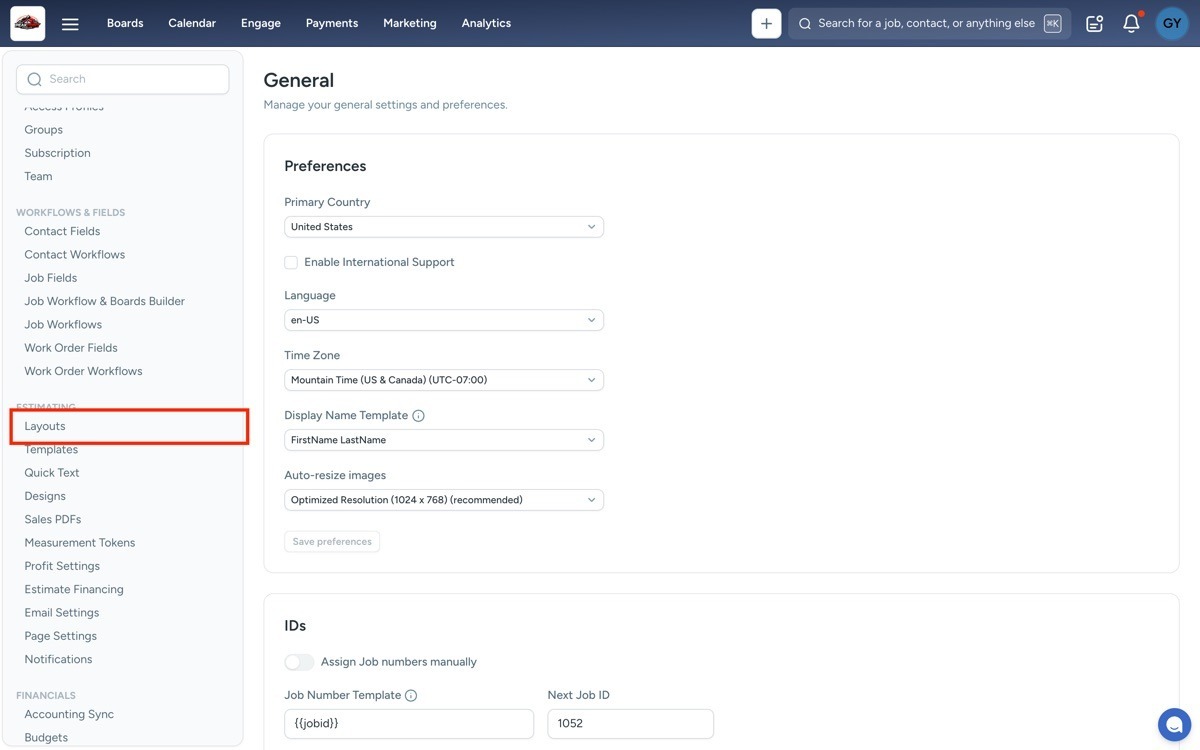
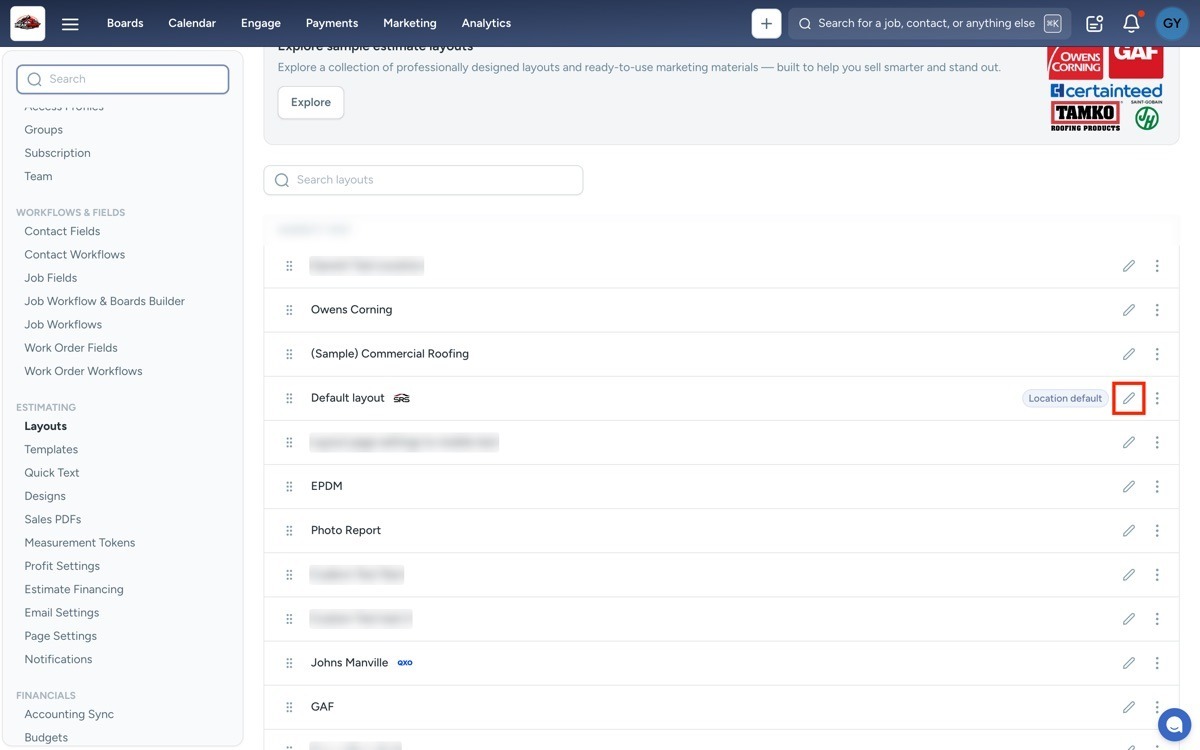
- Select the pencil icon on the row of the layout you want to change.
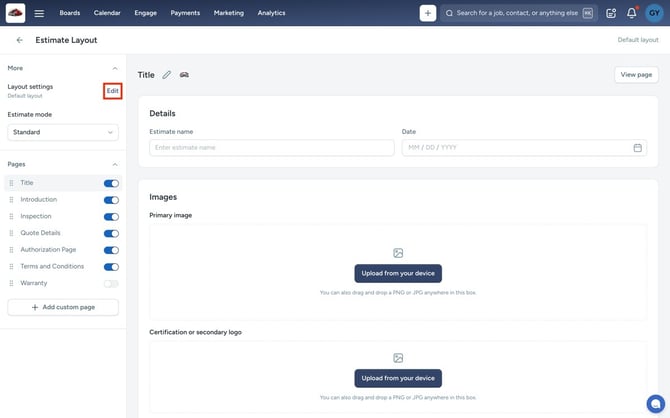
- In the left sidebar under More, select Edit next to Layout settings.
- Turn on the Show page numbers toggle.
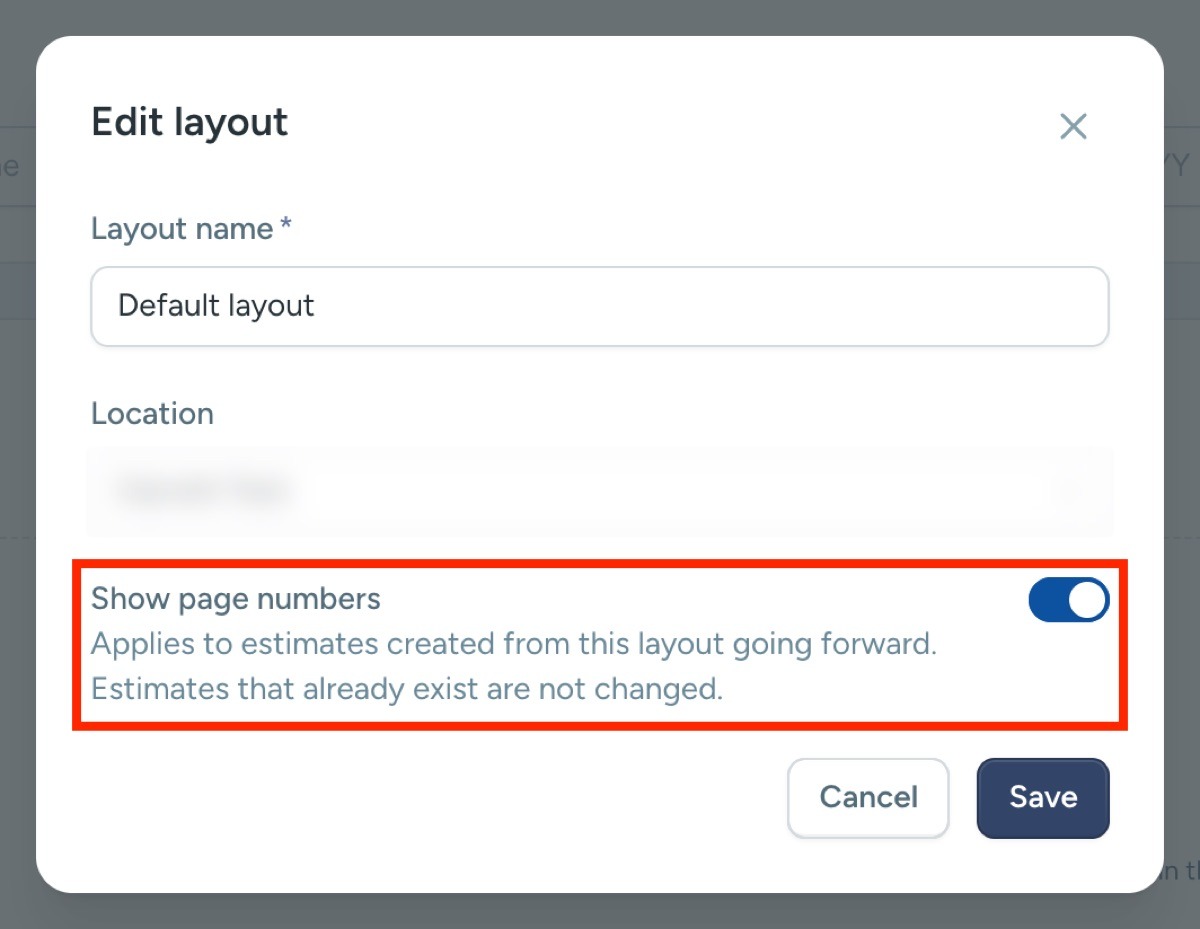
- Select Save.
Show page numbers applies to Estimates you create from this layout after you save. Estimates you already created keep their current setting. To turn page numbers off, switch the toggle off and select Save.
How Page Numbers Appear
When Show page numbers is on for an Estimate Layout, the Estimate PDF shows a page number on each page.
- The number sits in the bottom-right corner of the page. It's a single number, such as 3, not "Page 3 of 12."
- On a Standard Estimate, the first page (the Title page in the layout editor) has no number but still counts. The page after it is page 2.
- On a Simple Estimate, every page is numbered, including the first.
- On pages with artwork or a colored background behind the corner, the number appears inside a white circle.
- Custom pages are numbered too.
To change how your layouts are built, check out How Do I Create or Edit Estimate Layouts?
Page Numbers on Uploaded PDFs
When Show page numbers is on for an Estimate Layout, JobNimbus also numbers the custom pages in the Estimate, including PDFs you added from Sales PDFs, such as manufacturer warranties, spec sheets, and brochures. If an uploaded PDF already has its own page number or footer in the bottom-right corner, you may see both numbers on that page.
To avoid two numbers on an uploaded PDF, use a layout with Show page numbers turned off, or remove the page number from the PDF before you upload it.