![JN_Logo_Long-White@1x.png]](https://support.jobnimbus.com/hs-fs/hubfs/JN_Logo_Long-White@1x.png?height=40&name=JN_Logo_Long-White@1x.png)
To add photos to a Job instead, check out How Do I Take, Upload, and Edit Photos?
On This Page
For iOS
Adding Job Photos to a Work Order
To add photos to a Work Order in the JobNimbus iOS app, use the Work Order's Edit screen.
- Open the Work Order you want to add photos to.
- Tap the ellipsis icon (three dots) in the top right corner.
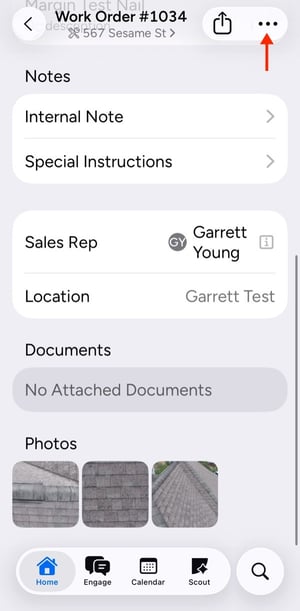
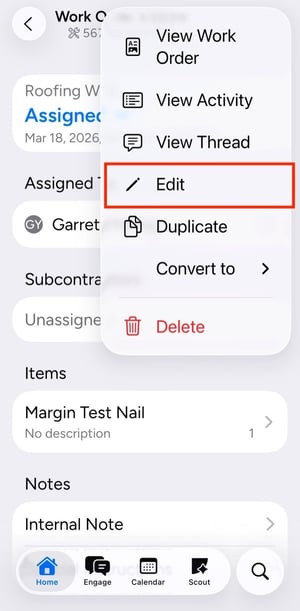
- Tap Edit.
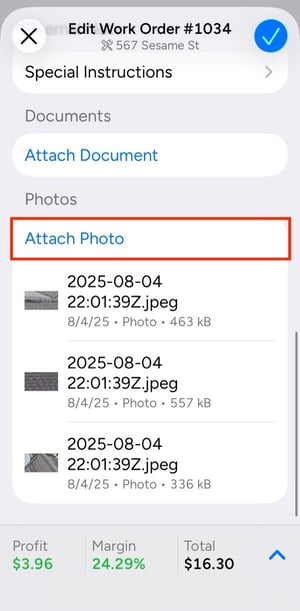
- Scroll to Photos, then tap Attach Photo.
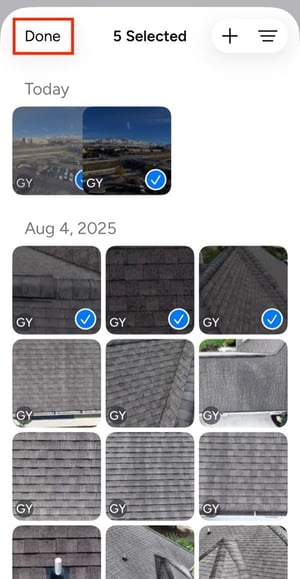
- Select the photos you want to add, then tap Done in the top left corner.
- Tap the check mark in the top right corner to save the Work Order. The photos appear under Photos.
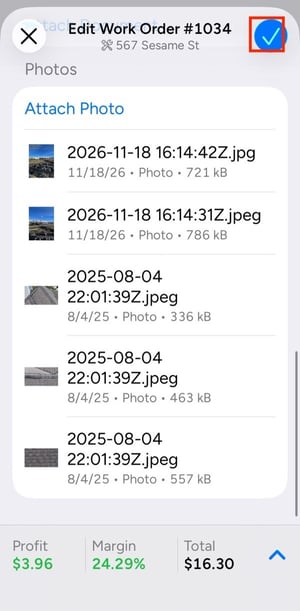
Adding Photos From Your Device to a Work Order
To add photos from your device to a Work Order in the JobNimbus iOS app, tap the + at the top of the photo picker on the Attach Photo screen, then tap Photo library. Select the photos you want, then tap the check mark in the top right corner. Tap Done in the picker, then save the Work Order.
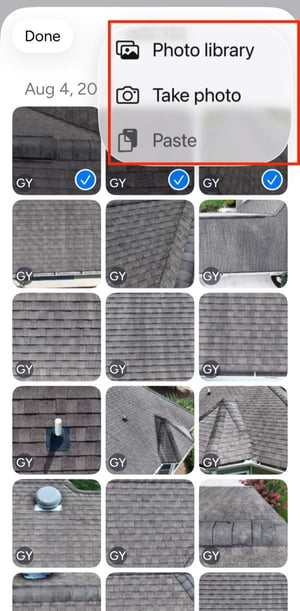
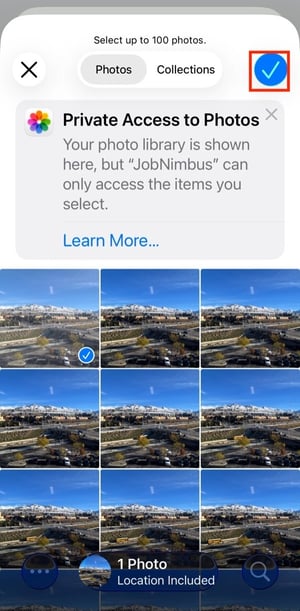
Taking a New Photo for a Work Order
To take a new photo for a Work Order in the JobNimbus iOS app, tap the + at the top of the photo picker, then tap Take photo. Tap the shutter button to take the photo, then tap Done. Tap Done in the picker, then save the Work Order.
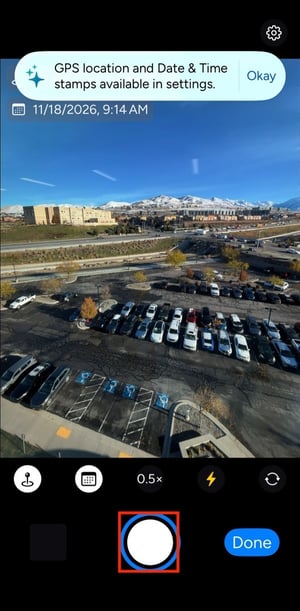
Adding photos to a Work Order requires Work Order edit permission. Without it, Edit doesn't appear. Subcontractors see a simplified Work Order screen and add photos with the + button.
For Android Devices
Adding Photos to a Work Order
To add photos to a Work Order in the JobNimbus Android app, use the Work Order's Edit screen.
- Open the Work Order you want to add photos to.
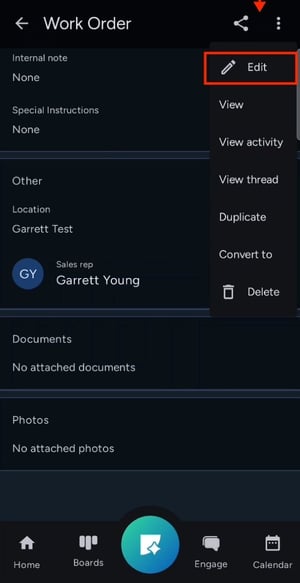
- Tap the three dots icon in the top right corner.
- Tap Edit.
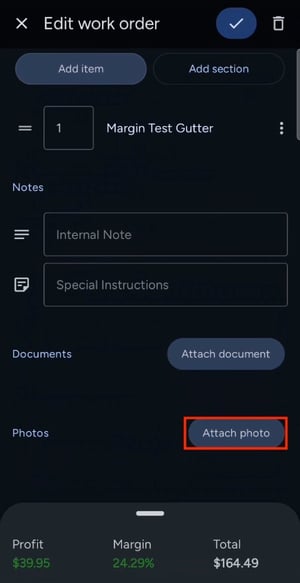
- Scroll to Photos, then tap Attach photo.
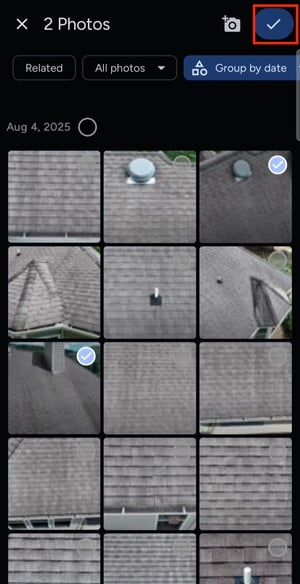
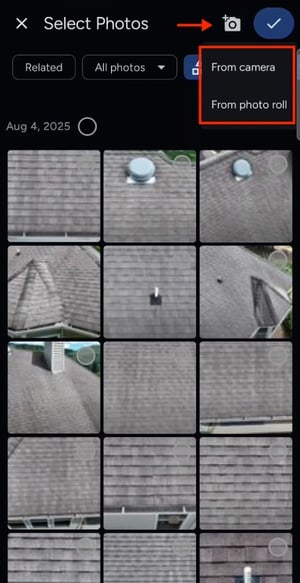
- Select the photos you want to add, then tap the check mark in the top right corner.
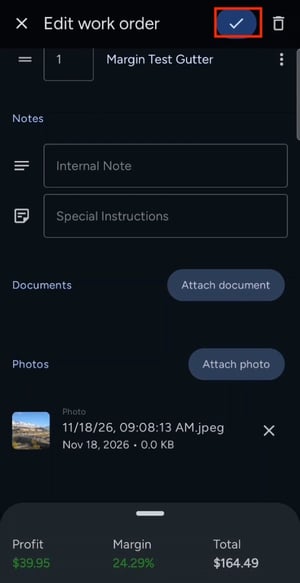
- Tap the check mark in the top right corner to save the Work Order. The photos appear under Photos.
Taking a New Photo for a Work Order
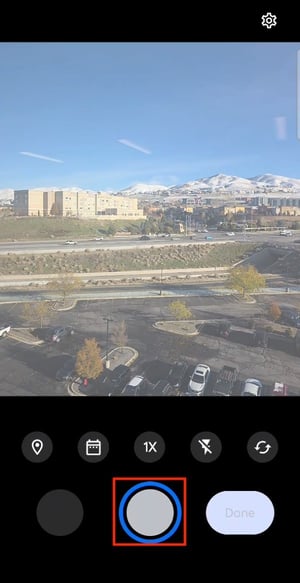
To take a new photo for a Work Order in the JobNimbus Android app, tap the camera icon at the top right of the Select Photos screen, then tap From camera. Tap the shutter button to take the photo, then tap Done. Tap the check mark to add the photo, then save the Work Order.
Adding photos to a Work Order requires Work Order edit permission. Without it, Edit doesn't appear. Subcontractors see a simplified Work Order screen and add photos with the + button.