![JN_Logo_Long-White@1x.png]](https://support.jobnimbus.com/hs-fs/hubfs/JN_Logo_Long-White@1x.png?height=40&name=JN_Logo_Long-White@1x.png)
On This Page
Payments on Web
Text-to-Pay
Note: You must be signed up for both Engage and JobNimbus Payments to access the text-to-pay feature.
- Navigate to the Job that the Invoice was created on and click on the Payments & Invoices section.
- Select the three dots next to the Invoice you would like to collect a payment for, and select Text Payment Request from the dropdown menu.
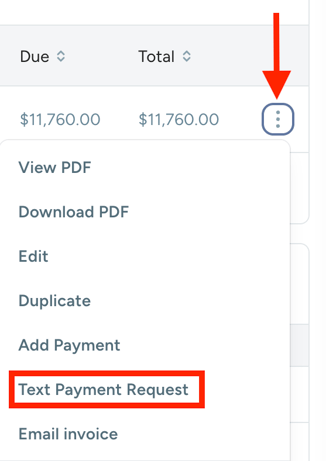
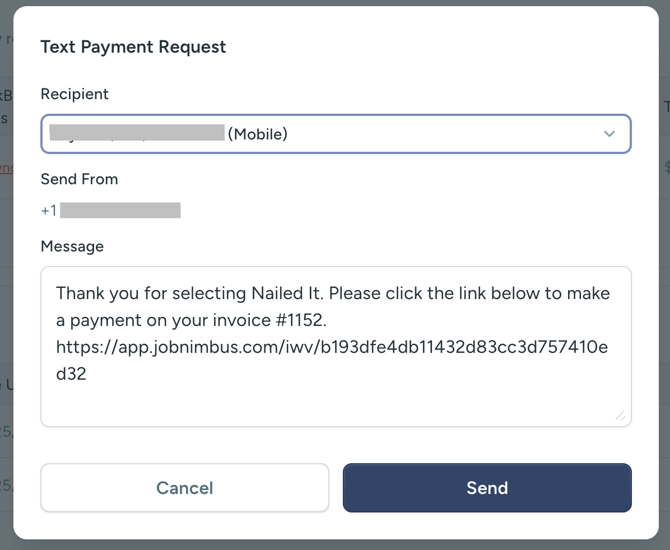
- This will open a text window, where you can review the recipient and the message containing the Invoice link.
- When you are ready, select the Send button to send your payment request.
Email a Payment Request
Note: You must first enable JobNimbus Payments to use this feature.
- Navigate to the Job that the Invoice was created on and click on the Payments & Invoices section.
- Select the three dots next to the Invoice you would like to collect a payment for, and select Email Payment Request from the dropdown menu.
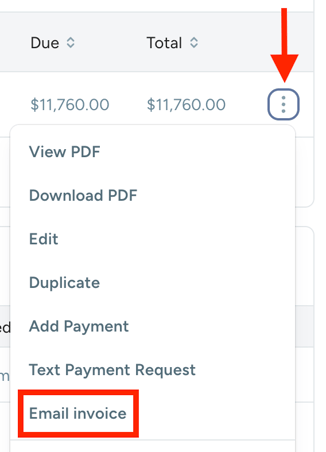
- In the email window, you can select an email template to include with your invoice or type a message in the text box. Then select the Send Email button.
-
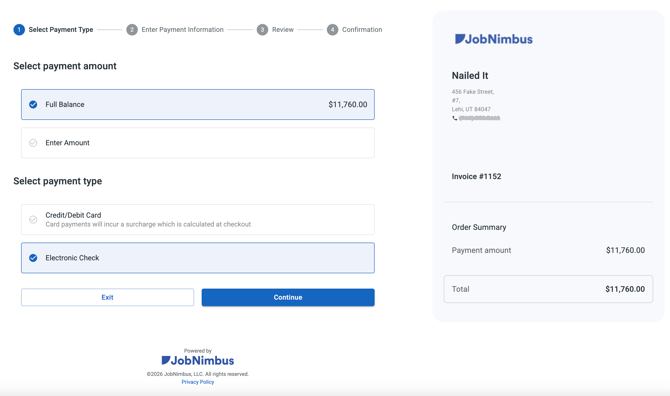
Once the email is received by the customer, they must click the link to view the invoice.
-
In the payment window, the customer can select the option to pay the full balance or enter a custom amount and select the option to pay with electronic check or pay with a credit or debit card.
- A receipt will then be sent to the Primary Contact and the Sales Representative with details of the payment that was made through JobNimbus.
Note: Changing the Invoice's Status to "Void" will prevent your customer from making any payments through the link on the document.
Record a Payment
- Navigate to the Job that the Invoice was created on and click on the Payments & Invoices section.
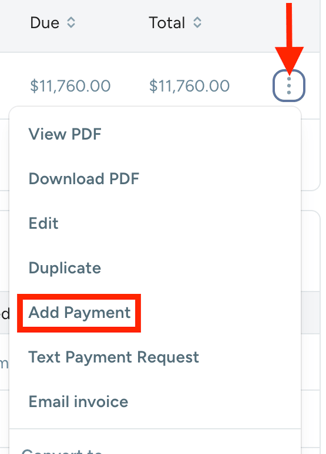
- Select the three dots next to the Invoice you would like to collect a payment for, and select Add Payment from the dropdown menu.
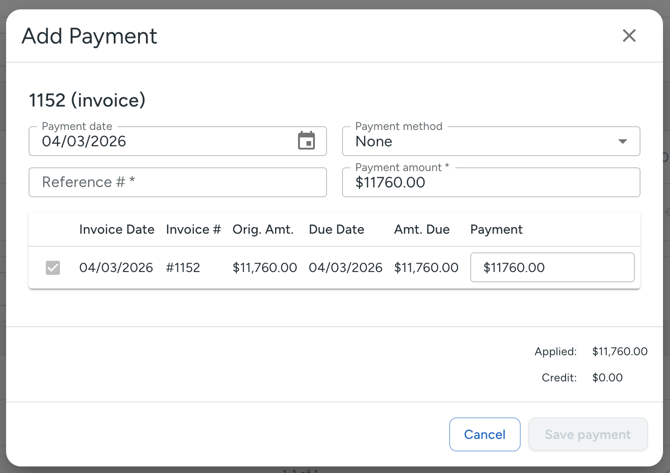
- A window will open and ask if you would like to apply a credit from an existing payment or credit memo (if any credits are available). Select the credit memo or payment you would like to apply, or select the option to add a new payment.
- Enter the payment information and select the invoice you would like to apply it to, then select Save Payment.
Move a Payment to a Different Invoice
If a payment was applied to the wrong Invoice, edit the payment to move it.
Deleting an Invoice also deletes every payment applied to it.
- Navigate to the Job the payment was recorded on and click on the Payments & Invoices section.
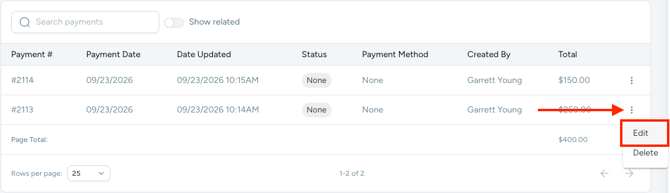
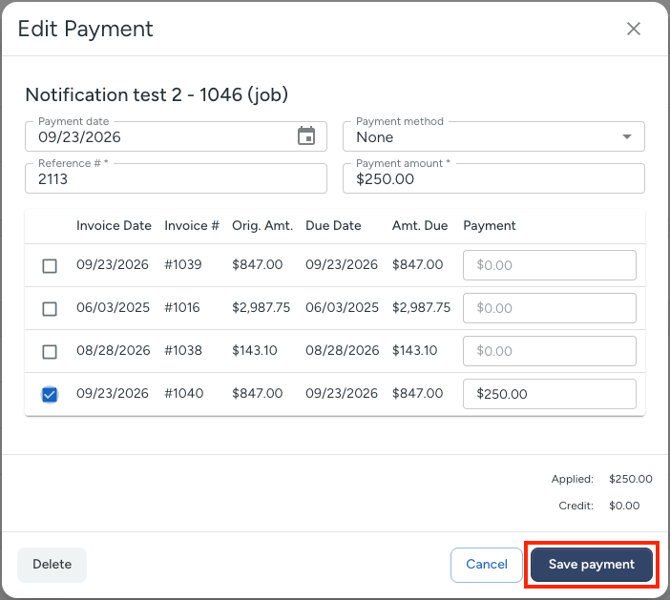
- Select the three dots to the right of the payment, then select Edit.
- Uncheck the box next to the Invoice the payment was applied to by mistake, then check the box next to the correct Invoice.
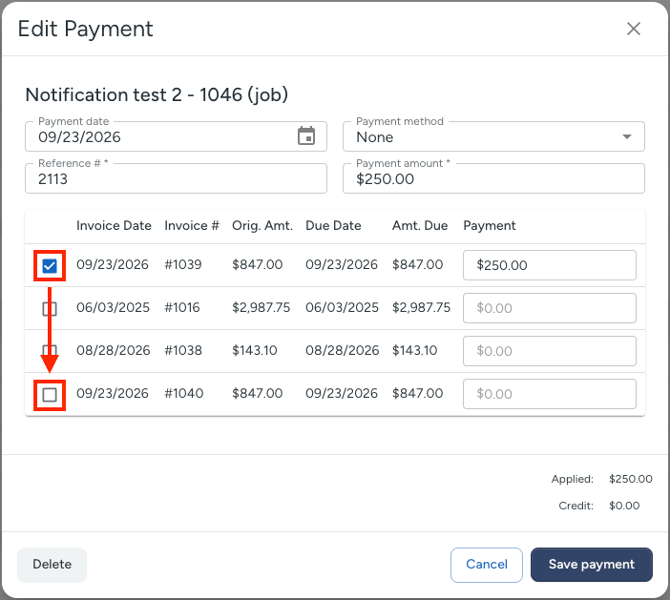
- Confirm the payment amount matches what your customer paid.
- Select Save Payment.
When the Invoice Can't Be Unchecked
Some payments are locked to the Invoice they were applied to, and that Invoice's checkbox is grayed out. This happens when:
- Your customer paid with the Make a Payment button on the Invoice through JobNimbus Payments.
- The payment was created from the Invoice itself rather than from the Job.
Payments requested from the Job, or sent with Text Payment Request or Email Payment Request, aren't locked and can be moved with the steps above.
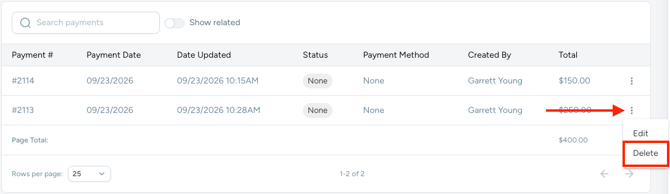
To move a locked payment, delete it and record a new one on the correct Invoice:
- Select the three dots to the right of the payment, then select Delete.
- Follow the steps in Record a Payment above to add a new payment to the correct Invoice.
- Enter the same amount, payment date, payment method, and reference number as the original payment.
Deleting a JobNimbus Payments payment only removes the record in JobNimbus. It doesn't refund your customer or change the transaction in the JobNimbus Payments portal.
If you sync with QuickBooks, the new payment syncs to QuickBooks as a new record.
Payments on iOS
Text-to-Pay
Note: You must be signed up for both Engage and JobNimbus Payments to access the text-to-pay feature.
- Navigate to the Invoice you would like to request payment for and select the text icon at the bottom of the screen.

- Once you've selected the text icon, a new message will be generated through Engage.
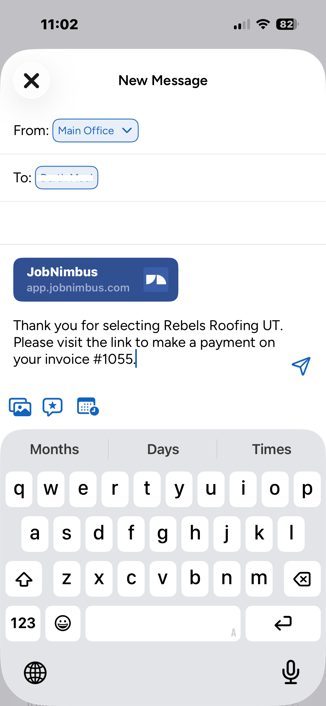
- Within the generated message, you can edit the text content according to your needs.
- When you are ready, tap the send button to send your payment request.
If you do not have both Engage & JobNimbus Payments but want to use text to pay, schedule a meeting with one of our representatives to get started today!
Email a Payment Request
-
Within the JobNimbus Mobile App, navigate to the Invoice you want to collect a payment for.
- Once you have opened the Invoice, tap on the Collect Payment button and select Request Payment.
- Here, you can:
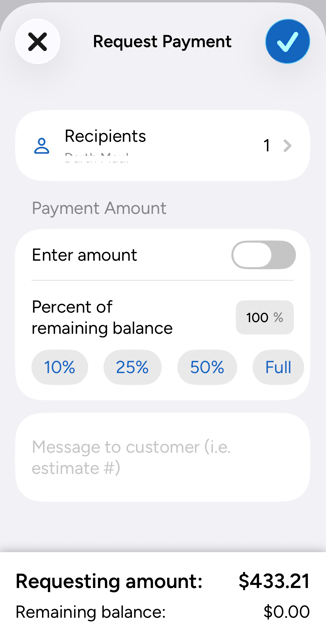
- Select the intended recipient(s) to whom the payment request will be emailed.
- Enter the Payment Amount manually or by selecting a percent of the remaining balance.
- Enter a note for your customer.
- Send your Payment Request by tapping the check mark.
-
Once you complete the request, the customer will receive an email through which they can complete the requested payment.
Note: This option is only available on Jobs.
Process a Payment
-
Within the JobNimbus Mobile App, navigate to the Invoice you want to collect a payment for.
- Open the invoice with a balance due, click the Collect payment button at the bottom of the screen. Then, select Process Payment.
- Select the Payment Amount and Payment Method you would like to use (ACH/Electronic Check or Credit Card).
- Have your customer enter their account or card information.
-
Review and complete the payment.
Record a Payment
- Open the invoice with a balance due, click the Collect payment button at the bottom of the screen. Then, select Record Payment.
- Once you are directed to this screen:
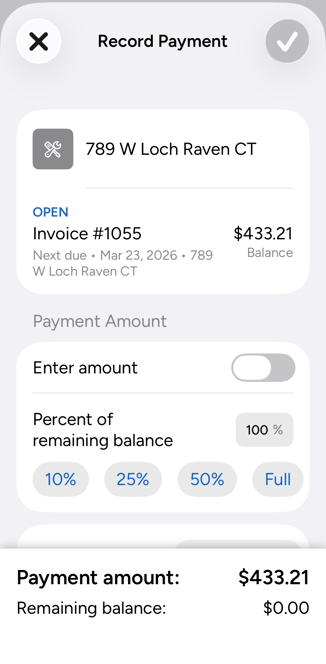
- View the Job name.
- Enter the amount being requested as a percentage or toggle the Enter amount option to apply it as a dollar amount.
- Enter the payment date, payment method, and reference number.
The available payment method options will depend on how your JobNimbus Payments settings have been configured through the Web App.
Payments on Android
Text-to-Pay
Note: You must be signed up for both Engage and JobNimbus Payments to access the text-to-pay feature.
- Navigate to the Invoice you would like to request payment for and select Request Payment a the bottom of the page.
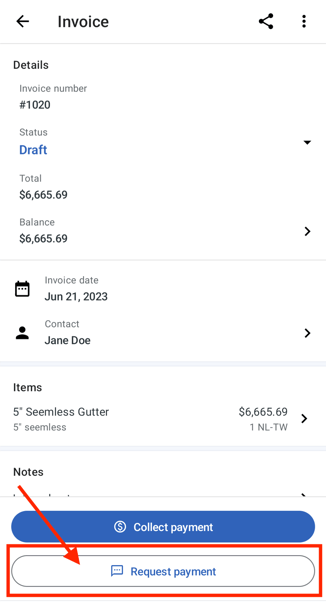
- Once you've selected Request Payment, select the mobile number you would like to send the request to. Then, a new message will be generated through Engage.
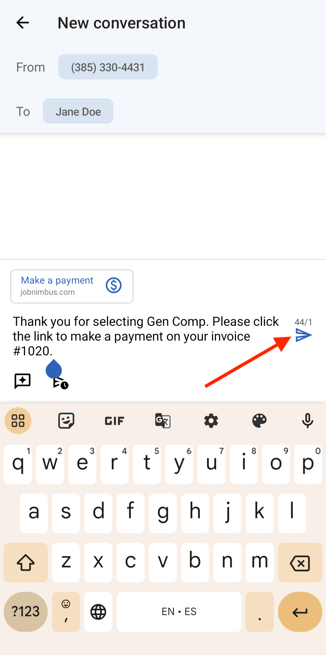
- Within the generated message, you can edit the text content according to your needs.
- When you are ready, tap the send button to send your payment request.
If you do not have both Engage & JobNimbus Payments but want to use text to pay, schedule a meeting with one of our representatives to get started today!
Email a Payment Request
- Within the JobNimbus Mobile App, navigate to the Invoice you want to collect a payment for.
- Tap on the tap on the Request Payment button and choose Email from the dropdown menu.
- Once here:
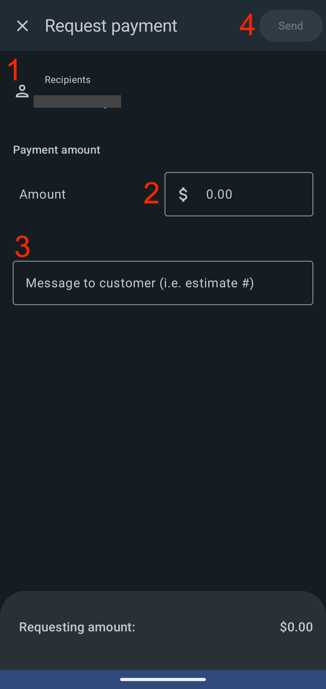
- Select the intended recipient(s) to whom the payment request will be emailed.
- Enter the Payment Amount.
- Enter a note for your customer.
- Send your Payment Request.
-
Once you hit Send, the customer will receive an email through which they can complete the requested payment.
Process a Payment
- Within the JobNimbus Mobile App, navigate to the Invoice you want to collect a payment for.
- Tap the Collect payment button at the bottom of the screen. Then, select Process Payment.
- Select the Payment Amount and Payment Method you would like to use (ACH/Electronic Check or Credit Card).
- Have your customer enter their account or card information.
-
Review and complete the payment.
Record a Payment
- Within the JobNimbus Mobile App, navigate to the Invoice you want to collect a payment for.
- Tap the Collect payment button at the bottom of the screen. Then, select Record Payment.
- Once you are directed to this screen:
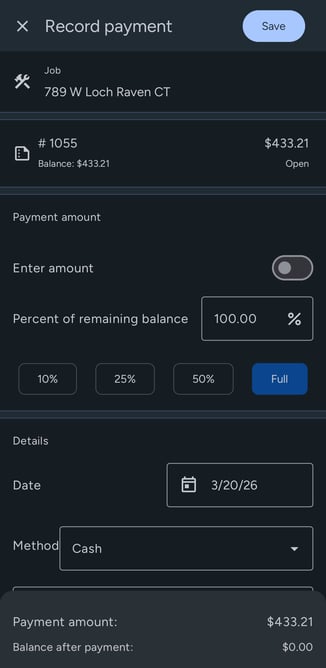
- View the Job name.
- Enter the amount being requested as a percentage or toggle the Enter amount option to apply it as a dollar amount.
- Enter the payment date, payment method, and reference number.
The available payment method options will depend on how your JobNimbus Payments settings have been configured through the Web App.