![JN_Logo_Long-White@1x.png]](https://support.jobnimbus.com/hs-fs/hubfs/JN_Logo_Long-White@1x.png?height=40&name=JN_Logo_Long-White@1x.png)
On This Page
What is a Credit Memo?
A Credit Memo is a document that a seller issues to the buyer, reducing the amount the buyer owes to the seller; this could be used in place of a refund, whether in the event of a pricing dispute or an allowance, for example. It can be used to partially offset an invoice or to offset a future invoice's total amount due.
Most businesses first record the issuing of the Credit Memo and then apply a payment to an Invoice, including the credit in payment.
If the customer would like a check or credit card return, then you would record a refund separately. This can be done by adding a line item (labeled "refund", for example) to the Invoice and logging the price as a negative dollar amount.
Creating a Credit Memo
- Navigate to the Job.
- Open the Payments & Invoices tab.
- Select + Create at the top right and select Create Credit Memos from the dropdown.
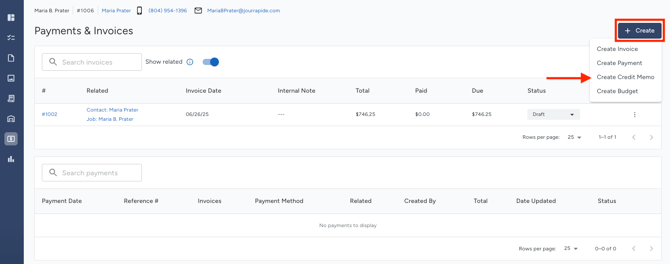
This will pull up the following window:
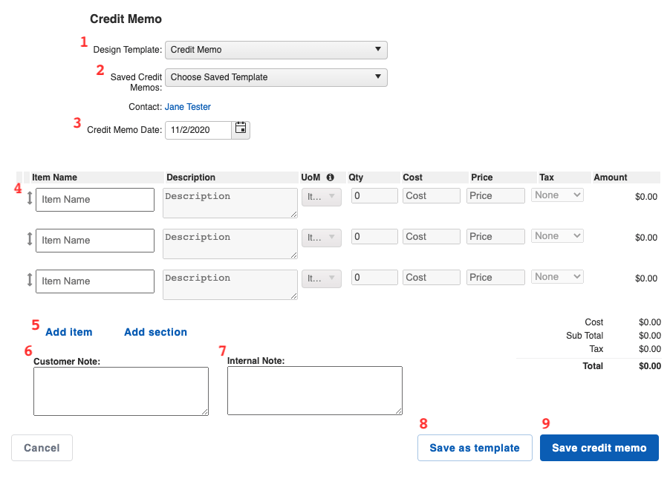
Here, you can:
- Choose a Design Template you have previously created in the Templates section of your Settings.
- Choose a Saved Credit Memo you have previously created and saved.
- Change the date on which the Credit Memo was issued.
- Add line items.
- These options given when you type in an item name are pulled from your Products & Services. If you have not yet added the item to your Products & Services, you can click on "Add New Product", which will pull up a window to create and save the product to your settings. While hovering over the field, the options to delete, add an image, or rearrange an item will appear.
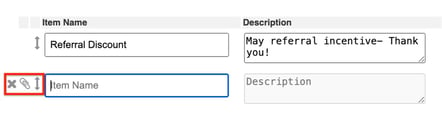
- These options given when you type in an item name are pulled from your Products & Services. If you have not yet added the item to your Products & Services, you can click on "Add New Product", which will pull up a window to create and save the product to your settings. While hovering over the field, the options to delete, add an image, or rearrange an item will appear.
- Add another line item or a new section.
- Sections can help you separate your line items into specific groups.
- Add a Customer Note.
- This note will appear at the bottom of your Credit Memo under the Customer Note Title and is visible to your customer.
- Add an Internal Note.
- This note will appear in the Credit Memo description when you view it and is only visible to your team.
- Save your Credit Memo as a template.
- This will allow you to save the Credit Memo, with all of its line items and totals, to be used later. When creating a Saved Credit Memo template, you will be prompted to give the template a name. Then, it will appear in the "Saved Credit Memo" drop-down the next time you need to create the same document.
- Save your Credit Memo.
- This will take you to the document viewer and will record it under the Credit Memos panel within the Financials tab.
Applying a Credit Memo
- To add funds from a Credit Memo to an Invoice, navigate to the Job and select the Payments & Invoices tab.
- Click on the three dots to the right of the Credit Memo.
- Select Use Credit from the dropdown menu.
- Choose which Invoice the Credit Memo should apply to and then click Save payment.