![JN_Logo_Long-White@1x.png]](https://support.jobnimbus.com/hs-fs/hubfs/JN_Logo_Long-White@1x.png?height=40&name=JN_Logo_Long-White@1x.png)
On This Page
Skills and Routines are available on Analytics AI and Analytics Enterprise. Check out What Are Skills and Routines in Analytics? to decide which one fits.
Creating a Skill
We recommend letting the AI Agent build your Skill for you with Create with AI. Describe what you want in plain words, and the AI Agent writes the Skill's name, identifier, description, and instructions.
- Open Analytics from the three-line menu in the top left of the page.
- Select Skills under AI in the Analytics sidebar.
- Select + New skill, then select Create with AI.
- Describe what the Skill should do, the same way you'd ask in the AI Agent chat.
- Review the Skill the AI Agent writes.
From this skills detail page, you can run, edit, or share your skill. By selecting the 3 dots at the top right of the page, you can also move the skill file to a different folder or delete the skill.
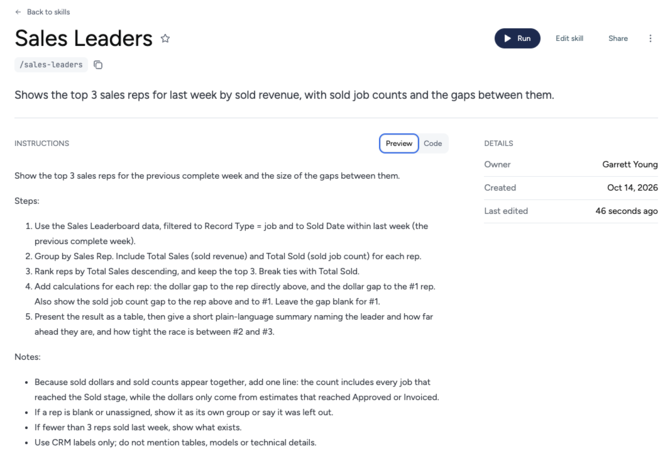
You can also write a Skill yourself with Write your own, or fill one in from a Markdown (.md) file with Upload a skill.
Once created, the skill will now be displayed in your skills page.
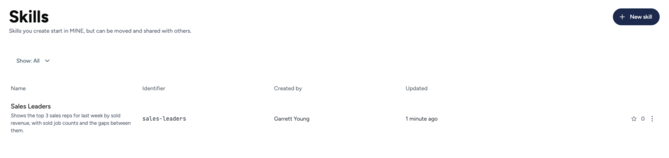
Running a Skill
- Select AI Agent under AI in the Analytics sidebar.
- Type / in the chat box.
- Select the Skill from the list that appears just above the chat text box.
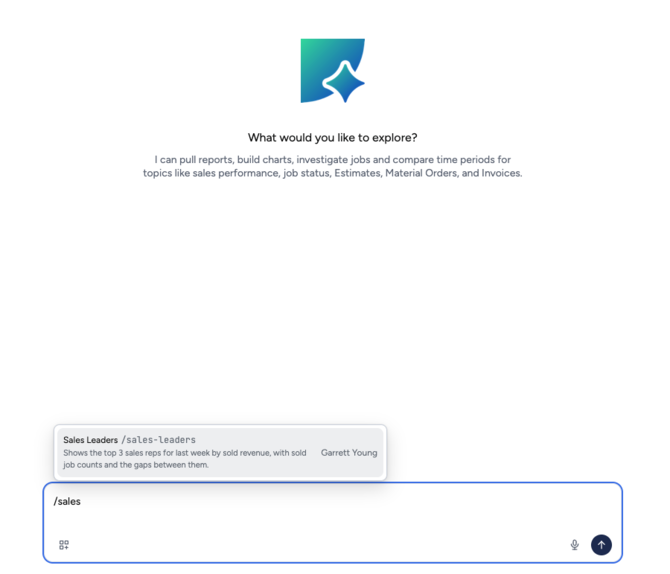
You can also add to the request in the same message, such as "/sales-by-rep-qtd for Commercial Jobs only." The Skill's instructions stay the same.
You can alternatively run the skill by clicking on Run button in the skill detail page mentioned in the Creating a Skill section above.
Creating a Routine
A Routine can run on a set schedule, or only when something happens in your data. You choose which one under Trigger.
- Select Routines under AI in the Analytics sidebar.
- Select New routine. This opens the New routine editor window.
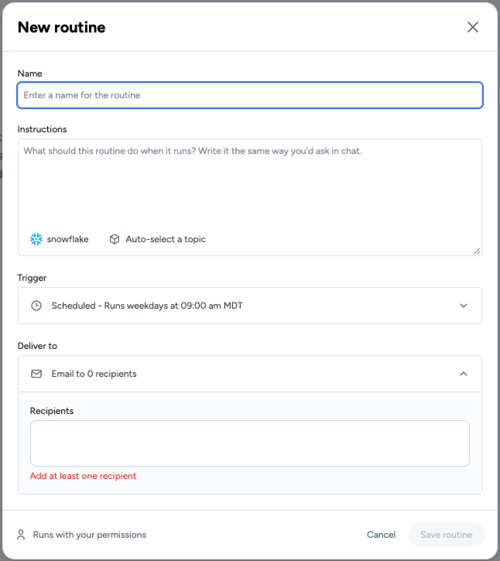
- Enter a Name for the Routine.
- Write the Instructions for what the Routine should do each time it runs.
- Set up the Trigger using one of the two sections below.
- Enter at least one email address under Recipients.
- Select Save routine.
To run a saved Skill from a Routine, type the Skill's identifier in the Routine's instructions.
Triggers
On a Schedule
- Select On a schedule under Trigger.
- Choose how often it Runs: Daily, Weekly, Monthly, or Custom.
- Select the days under On and a time under At.
- Confirm the time zone in Times are in.
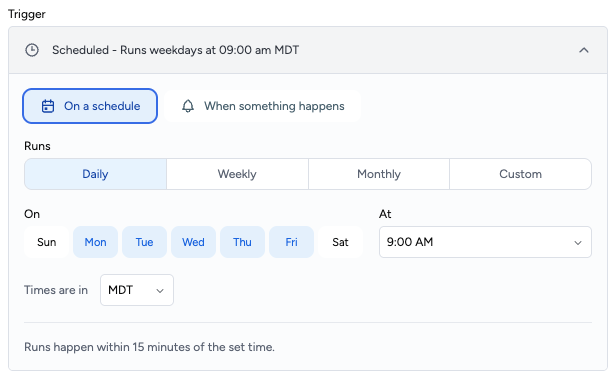
The Routine runs within 15 minutes of the set time.
When Something Happens
- Select When something happens under Trigger.
- Describe the condition under Watch for, such as "a Job stays in the Lead status for more than seven days."
- Select Test condition.
- Choose how often it Checks: Daily, Weekly, Monthly, or Custom.
- Select the days under On and a time under At.
- Confirm the time zone in Times are in.
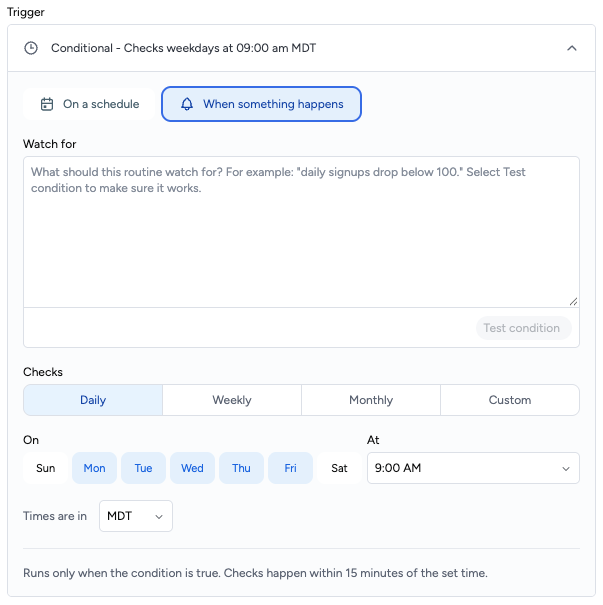
The Routine checks within 15 minutes of the set time and runs only when the condition is true.