![JN_Logo_Long-White@1x.png]](https://support.jobnimbus.com/hs-fs/hubfs/JN_Logo_Long-White@1x.png?height=40&name=JN_Logo_Long-White@1x.png)
On This Page
- What Is the Account Switcher?
- Getting the Account Switcher
- Switching Accounts on Web
- Switching Accounts on iOS
- Switching Accounts on Android
- Your Primary Account
- What Changes After Accounts Are Linked
- If You Don't See Switch Account
What Is the Account Switcher?
If your company has more than one JobNimbus account, the Account Switcher lets you move between those accounts without logging out and back in. You log in once, then pick the account you want to work in. It works on JobNimbus Web and in the Mobile App, with both Jobs accounts and Contacts-only accounts.
The Account Switcher is available on the Enterprise plan. It's built for companies that run separate accounts, such as different locations or brands, and have team members who work in more than one of them.
Getting the Account Switcher
The Account Switcher isn't something you turn on in Settings. JobNimbus links your accounts for you. All linked accounts need to be on current JobNimbus billing.
- Contact your Customer Account Executive (CAE) and tell them which accounts you want linked.
- List the team members who need access to more than one account.
- Choose the one email address each of those team members will use to log in.
- Choose each team member's primary account.
Each linked team member logs in with one email for all of their accounts. Their other logins stop working, so switching becomes the only way to reach their other accounts.
Switching Accounts on Web
- Click on your profile icon or initials in the top right corner.
- Select Switch Account from the dropdown menu.
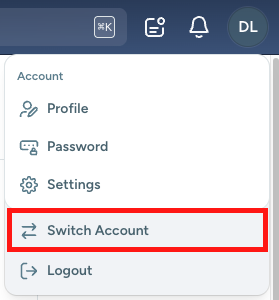
- In the Switch Account window, select the account you want to open.
- The account you're in now is at the top of the list, outlined, with a check mark.
- Your primary account shows a Primary tag.
- To hide the Please note message in this window, select Got it, don't show again.
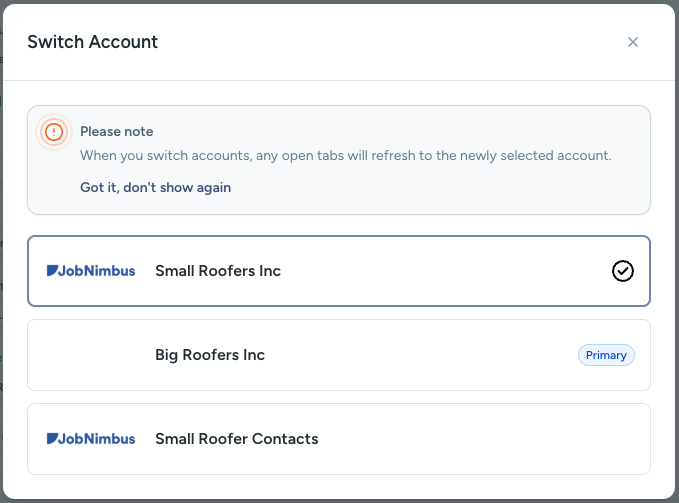
- Wait for the page to reload. JobNimbus opens the Dashboard for the account you selected.
Switching accounts refreshes every JobNimbus tab you have open in that browser. Save your work in other tabs before you switch so you don't lose unsaved changes.
Switching Accounts on iOS
- Tap the profile icon in the top right corner of the Home screen.
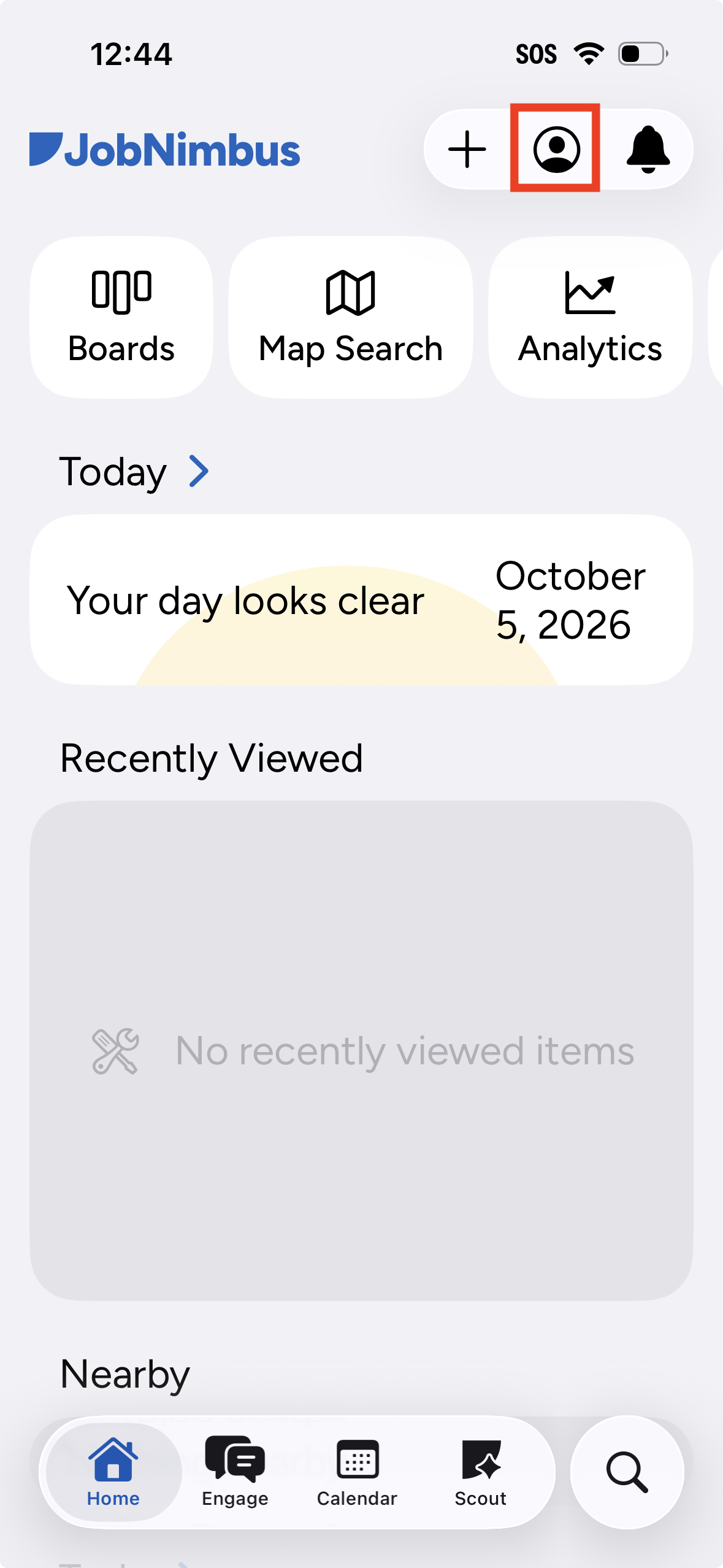
- On the Account screen, tap Switch next to the name of the account you're in now.
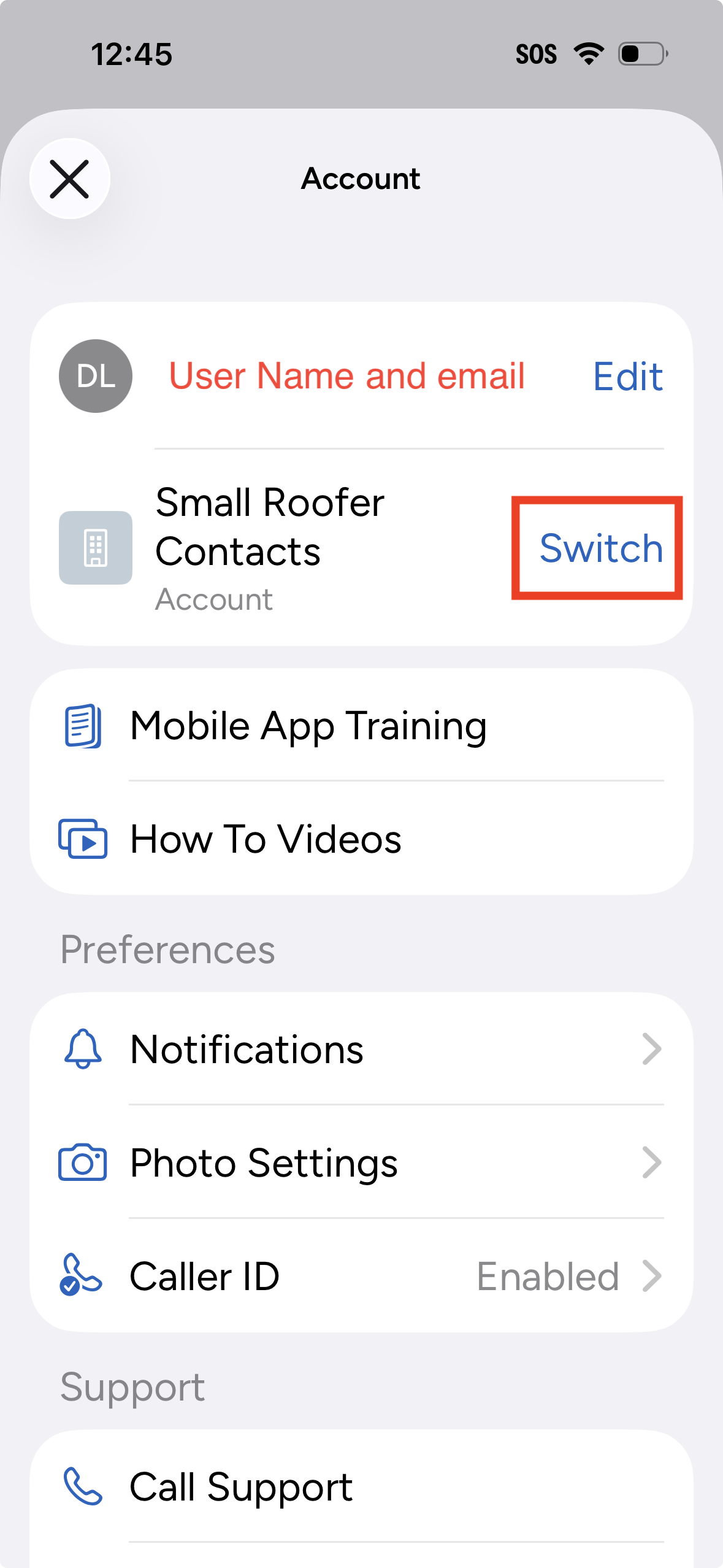
- Tap the account you want to open.
- The account you're in now has a check mark.
- Your primary account shows Primary under its name.
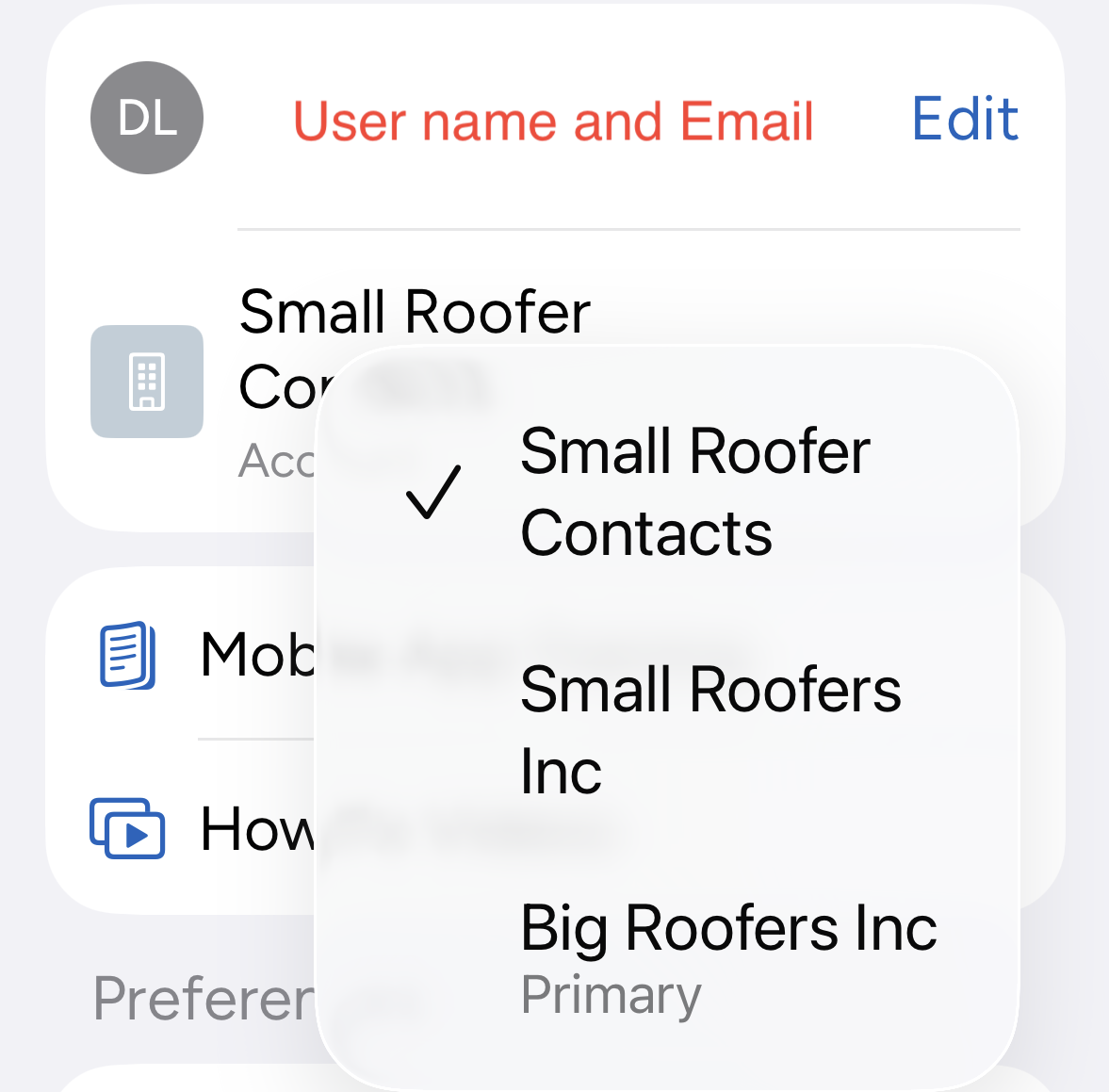
- Wait for the app to load the account you selected.
Switching Accounts on Android
- Tap the profile icon in the top right corner of the Home screen.
- On the Account screen, tap Switch next to the name of the account you're in now.
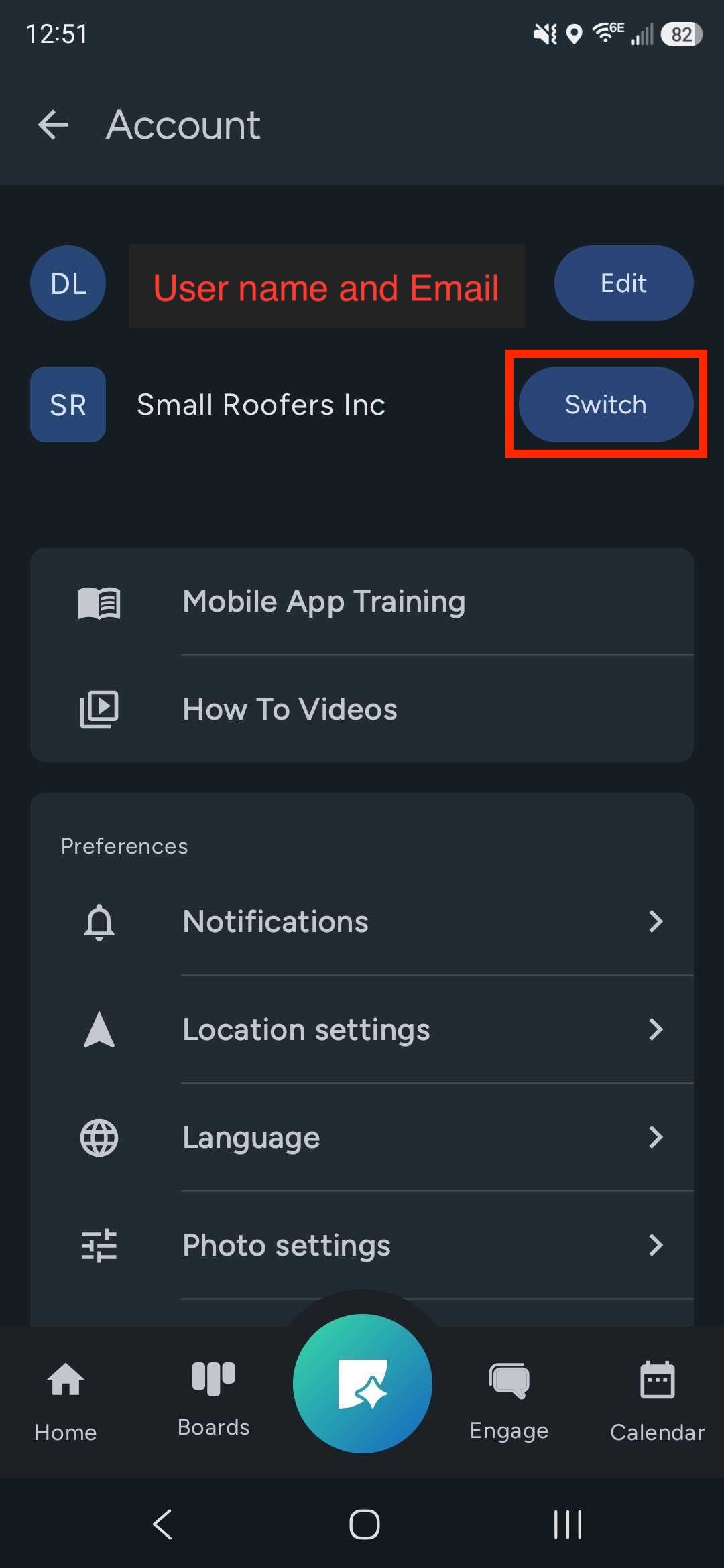
- In the Switch company list, tap the account you want to open.
- The account you're in now has a check mark.
- Your primary account shows Primary under its name.
-jpg.jpeg?width=250&height=542&name=Screenshot_20261005_125117_JobNimbus%20(1)-jpg.jpeg)
- Wait for the app to load the account you selected.
Your Primary Account
Password changes only work from your primary account. To change your password, switch to the account labeled Primary first. Then, follow the steps in How Do I Unlock My Account and Reset My Password?
What Changes After Accounts Are Linked
- Permissions: Your role and Access Profile are set separately in each account, so menus and records can look different after you switch. For example, a Contacts-only account doesn't show Jobs in the menu bar.
- Login email: Your login email can't be changed from a linked account.
- Adding team members: In linked accounts, inviting someone with an email that already exists in another linked account connects them to your account. You won't see the "A user with the same email address already exists" error for them.
- Settings and templates: Each account keeps its own settings, Workflows, and templates. They aren't shared or copied between linked accounts.
- Analytics: If you use Analytics, you can view reports for all of your linked accounts in one place.
If You Don't See Switch Account
The switch option only appears when your login has access to two or more linked accounts. If your accounts were linked recently, reload the page on JobNimbus Web, or close and reopen the Mobile App. You don't need to log out and back in.
If you still don't see it, your accounts may not be linked yet. Check with your CAE, as described in Getting the Account Switcher.