![JN_Logo_Long-White@1x.png]](https://support.jobnimbus.com/hs-fs/hubfs/JN_Logo_Long-White@1x.png?height=40&name=JN_Logo_Long-White@1x.png)
On This Page
- Turning On Texting From a Job
- Sending a Text From a Job
- Replying to a Text From a Job
- When You Can't Send a Text
Texting from a Job is a NimbusLabs early-access feature that will need to be enabled before proceeding. Your account also needs Engage, and you need Engage access in your Access Profile.
Turning On Texting From a Job
- Click on your profile icon or initials in the top right corner. Then, select Settings from the dropdown menu.
- Select the NimbusLabs option from the Settings menu.
- Find Text from a Job in the list.
- Turn on the Personal access toggle for yourself, or the Company-wide access toggle for your whole team.
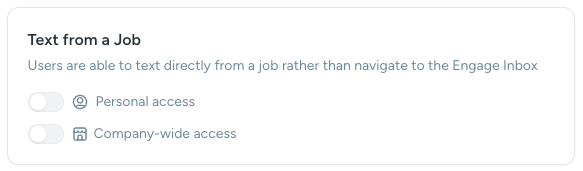
When the feature is off, the Text button on a Job opens the conversation in Engage instead.
To learn more about early-access features, check out What Is NimbusLabs?
Sending a Text From a Job
- Open the Job.
- Select the Text button at the top of the Job.

- Check the To row to confirm the Contact and number you're texting.
- Type your message in the text field.
- Select Send.
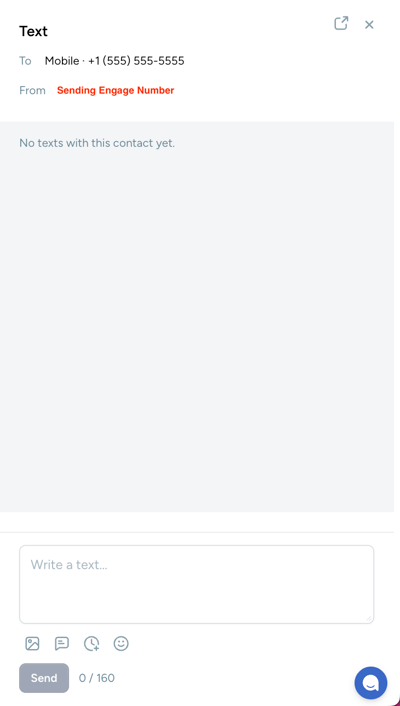
The drawer opens on the right side of the Job, so you don't leave the page. In the drawer, you can also:
- Change the recipient: If the Job has more than one Contact or number, select the arrow in the To row to choose a different one.
- Change the sending number: If your account has more than one texting line, choose a different number from the From dropdown.
- Insert a saved reply: Select the saved replies icon to add one of your company's Engage message templates. Merge fields such as the Contact's first name fill in for the current recipient.
- Add a photo or emoji, or schedule a message: Use the toolbar icons below the message field.
- Track your length: The counter shows how many characters and credits your message uses.
- Open the full inbox: Select the Open in Engage inbox icon next to the X to open Engage in a new tab. The drawer stays open.
Each message shows who sent it: your team member's name for outgoing texts and the Contact's name for replies. New replies appear in the drawer automatically.
Replying to a Text From a Job
- Select Activity from the Job menu on the left.
- Find the text in the feed and select Reply.
- Type your message and select Send.
If a team member owns the conversation, the drawer shows who it's assigned to in place of the message field. Select Assign to me to take it over and reply. You can also hand a conversation to someone else from the Assigned dropdown.
When You Can't Send a Text
If the message field is missing, the drawer shows a notice explaining why:
- No mobile number: The Contact has no mobile number on file. Enter one and select Save & start. The number saves to the Contact, so you only add it once.
- Opted out: The Contact replied STOP to this sending number. Only they can turn texts back on by replying START. A different From number may still work.
- Texting off: Texting is turned off for this Contact in Engage, or the number isn't valid.
- You don't have texting access: You can read the conversation but can't send, claim, or reassign it. An admin can turn on Engage in your Access Profile. Log out and back in for the change to take effect.
- Engage panel instead of a conversation: Your account doesn't have Engage. Select Learn more, or ask your admin to add Engage.
To learn about opt-outs and texting rules, check out What Guidelines Should I Follow for Texting My Customers Through Engage?