![JN_Logo_Long-White@1x.png]](https://support.jobnimbus.com/hs-fs/hubfs/JN_Logo_Long-White@1x.png?height=40&name=JN_Logo_Long-White@1x.png)
On This Page
- Uploading Photos and Documents
- Downloading Photos and Documents
Uploading Photos and Documents
- Navigate to a Job record.
- Select the Documents or Photos on the left side menu, then select Upload.
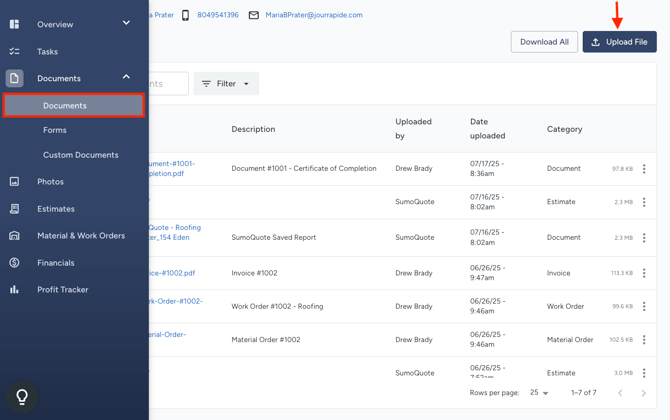
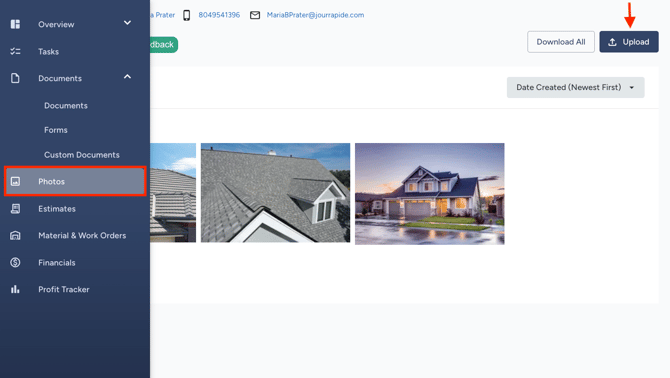
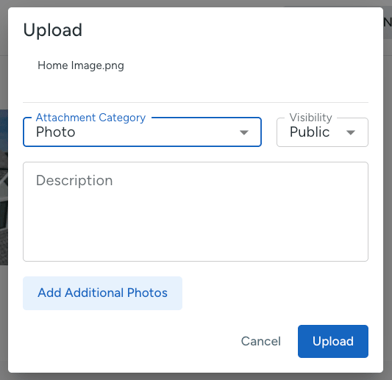
- Categorize your attachment and give the file a description for future context.
To customize your list of Category options, head over to Settings > Attachment Categories.
The default option of the "Category" dropdown menu in the Add Attachment pop-up is dependent on whichever is at the top of the list in your settings.
- Browse for the file on your device or drag and drop the file. Once you have selected the file you want, click Upload.
Note: All PDFs will appear under the Documents tab, even if it is assigned a different category and/or uploaded under the Photos tab.
- Once you have uploaded the attachment, clicking on the photo will give you some options:
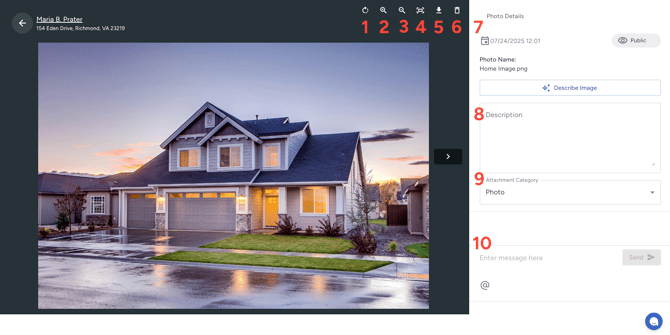
- Rotate the image.
- Zoom In.
- Zoom Out.
- Reset the image
- Download an individual photo.
- Delete the image from the record.
- Photo Details.
- Add a Description to the image. Try using our Describe Image AI Button to help you get started.
- Assign an Attachment Category.
- Send a Message to someone in the JobNimbus system by tagging them.
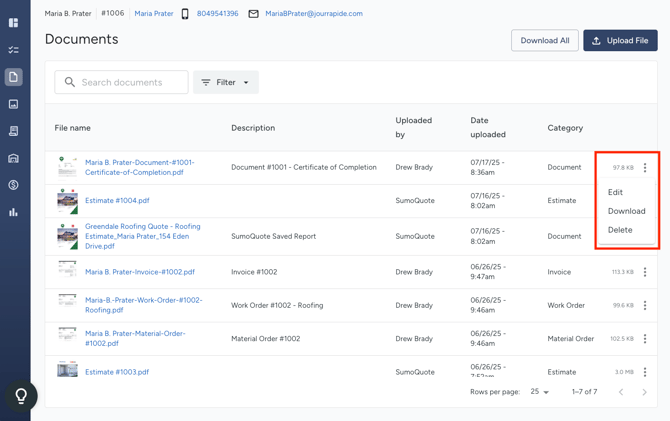
- In the Documents section, clicking on the three dots on the right will give you a few options:
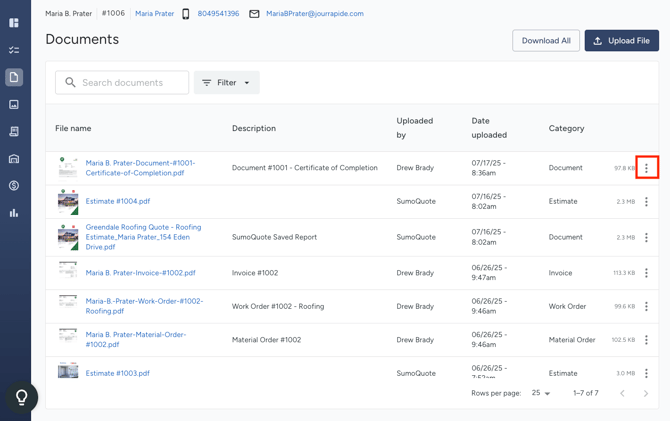
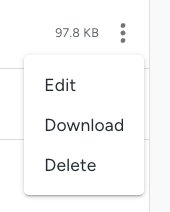
- Edit the document.
- Download this individual Document.
- Delete the document.
- To view the document, click on the File Name. This will show you a PDF of the document file.
- Keep in mind that while most major file types are compatible, there are some that have not met our security protocols. If you are experiencing trouble uploading a certain file, please contact our Support Team for assistance.
HEIC/F format is not natively supported in any browser. In order to display these types of files, first convert them to a valid format, such as PNG or JPG.
You can make a compatible file the default on an Apple device by going to your General Settings > Camera > Formats and selecting "Most Compatible".
File Size Limit
- The size limit for documents is 95mb. If you attempt to upload a file that exceeds the 95mb limit, you will receive an error stating that the upload has failed.
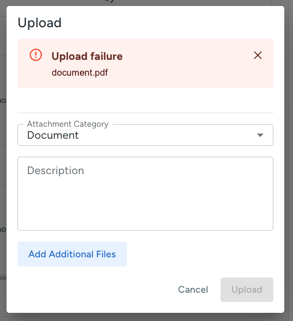
- To correct this, reduce the size of your file by compressing it or breaking up the information into multiple smaller files.
Downloading All Files
- To download files in bulk, select the Download All button located at the top right corner of either the Documents or Photos tab.
-
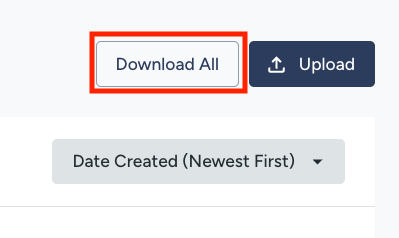 Selecting Download all will download all photos and documents, regardless of which tab you select this option in.
 - Once your download is completed, you will receive a notification in the JobNimbus Notification Center (the bell icon in the upper right-hand corner).
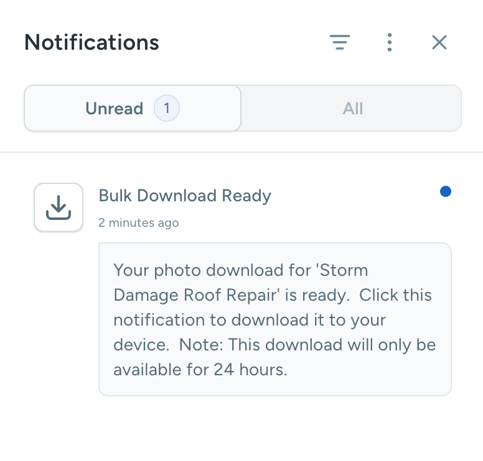
- Click on the notification and the zip file will download to your browser's download folder.
- From here, you can open the folder and the documents and photos from the record will be available on your device.
Note: "Download All" on a contact only includes photos and documents directly attached to that contact record. Related photos and documents (those attached to linked jobs or other related records) are not included in the zip, even when "Show Related" is toggled on in the Photos or Documents tab. To download related files, open each related record and run Download All from there, or contact Support for a bulk export on high-volume records.
Downloading Individual Files
- To download attachments individually, select the three dots to the right of the document of your choice and select Download.
- For photos, click on the photo and then the Download Button on the top right.
