![JN_Logo_Long-White@1x.png]](https://support.jobnimbus.com/hs-fs/hubfs/JN_Logo_Long-White@1x.png?height=40&name=JN_Logo_Long-White@1x.png)
Using the Job Workflow and Boards Builder
Creating and Editing Boards & Workflows
- To access the Job Workflow and Boards Builder, click on your profile picture or initials in the top right corner, then select Settings.
- From the Settings menu on the left, select the Job Workflow & Boards Builder option.
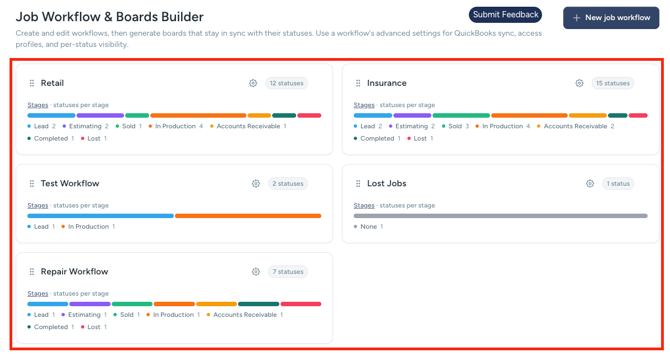
Here, you will see any Boards and Workflows that you have already built or that have been pre-built on your account.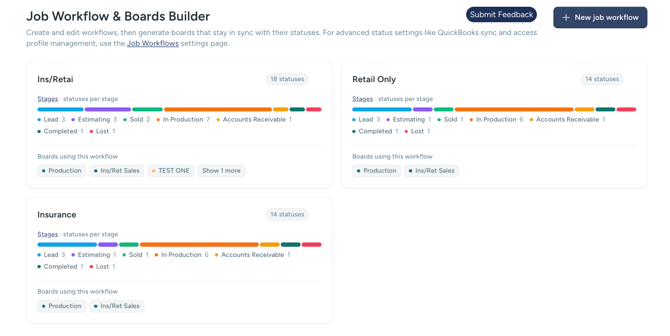
- To create a new Board/Workflow, click the New job workflow button in the top right corner.
- Select Start from scratch or Use an existing workflow.
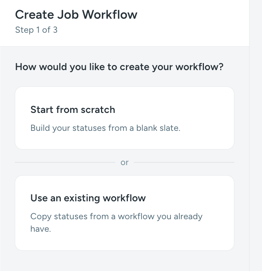
Using an existing workflow will show a list of stages and statuses in columns as they are in the workflow they were copied from. Starting from scratch will show a list of stages with no statuses assigned. - Enter a Name for your workflow, then select Next. The Type is always set to Job.
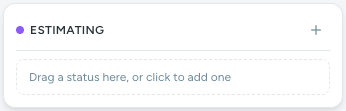
- To create a new board column and status, select the + button in the top right corner of the stage, or select Drag a status here, or click to add one, and type the name of the column you would like to associate with the Stage. The Board preview on the right updates as you type.
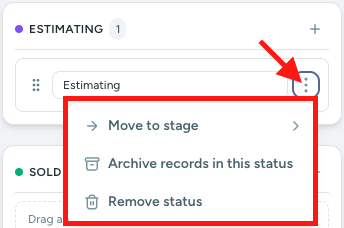
- Click on the three dots to Move to stage, Archive records in this status, or Remove status.
- Once you have added the statuses to your board, select the Create Workflow button at the bottom of the Create Job Workflow window. Your new Board opens with a column for each status.
Editing Boards & Workflows
- To edit an existing Board/Workflow, click on the option you wish to edit and make your changes.
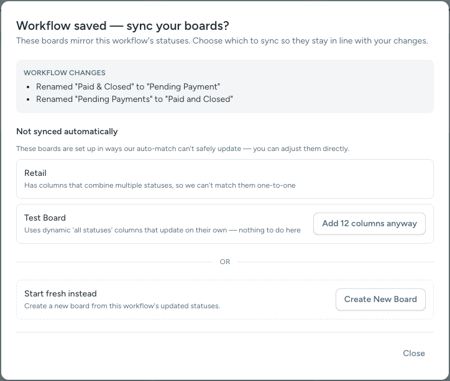
- When you save, you will see a window asking if you would like to sync your boards and allowing you to select which boards you would like to sync or if you would like to create a new board. Board syncs will be done individually based on your selections here.
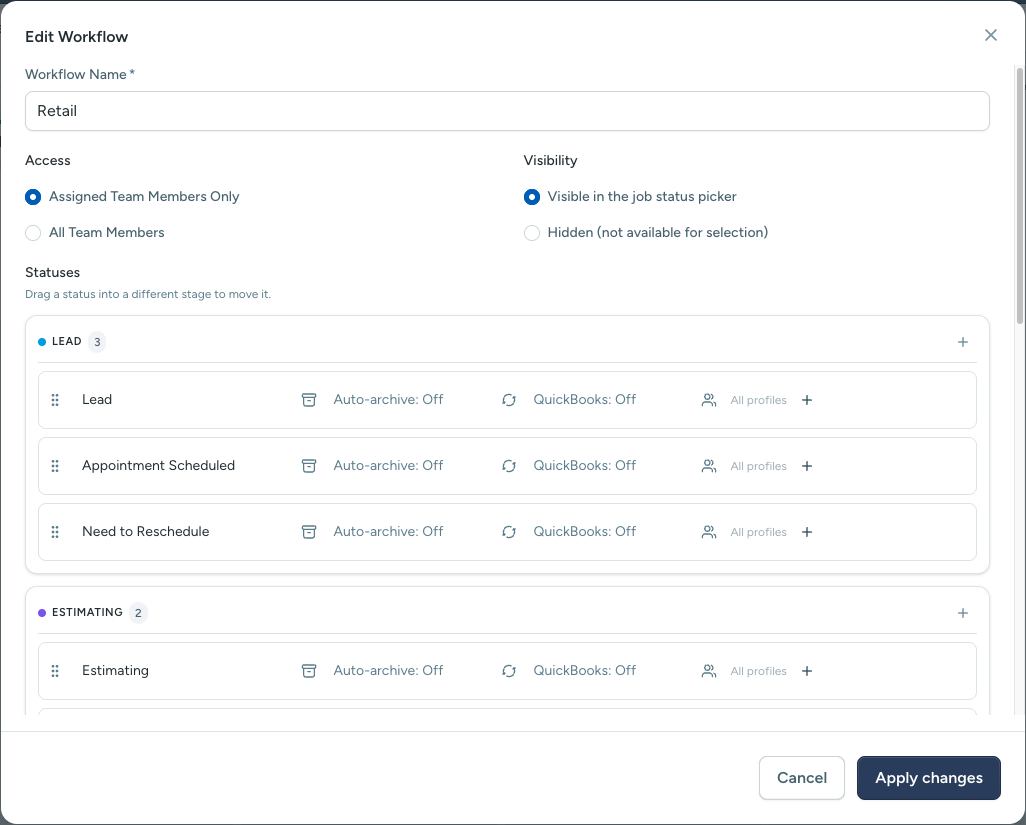
To change QuickBooks sync, Access Profile permissions, or per-status visibility, select Advanced at the top of the builder window.
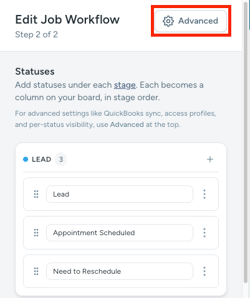
Edit your advanced settings here and make sure you select Apply Changes to save these settings.