![JN_Logo_Long-White@1x.png]](https://support.jobnimbus.com/hs-fs/hubfs/JN_Logo_Long-White@1x.png?height=40&name=JN_Logo_Long-White@1x.png)
This information applies to the U.S. versions of QuickBooks only.
Invoices are being assigned a tax rate based on the address
- QuickBooks uses an automated system that will assign tax rates to new invoices ‘based on location’ by default, meaning it will use the tax rate associated with the Ship to address of the customer.
- JobNimbus is not able to override this action. If you need a tax rate assigned to an invoice that is different from the company’s address, you will need to create the invoice in QuickBooks and change the tax rate manually before saving.
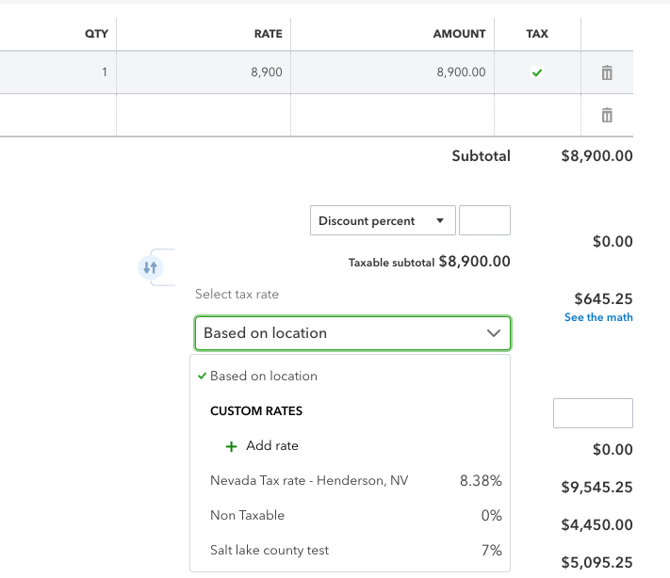
- Example of taxes on the invoice being changed:
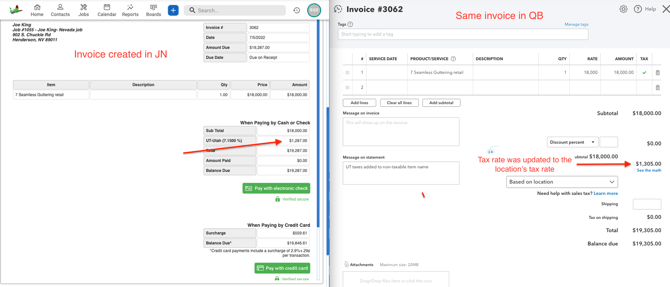
- If there is no address listed in the "shipping to" field on the contact or job in QuickBooks, then it will default back to the location of the company:
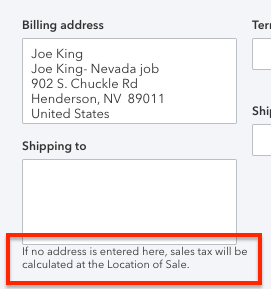
- To fix this, edit the settings to send Job addresses to the Ship to Field in QuickBooks.
- Go to Settings=>Accounting sync and click on the drop down for Job Address Sync. Choose to sync to Ship to address.
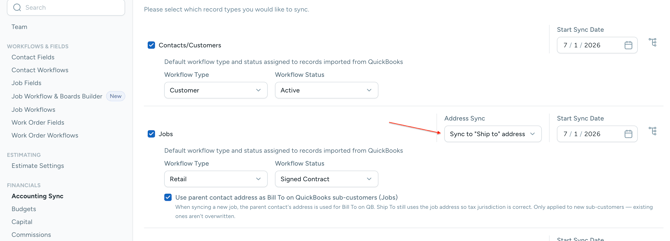
- Hit Update settings at the top of the page when done. All new jobs will send the address to the 'Ship to' field. It will not retroactively fix any jobs that synced previously. Those will need to be fixed manually in QuickBooks.
- Please note this feature is not available for Contacts only.
- Go to Settings=>Accounting sync and click on the drop down for Job Address Sync. Choose to sync to Ship to address.