![JN_Logo_Long-White@1x.png]](https://support.jobnimbus.com/hs-fs/hubfs/JN_Logo_Long-White@1x.png?height=40&name=JN_Logo_Long-White@1x.png)
On This Page
Configure The Subcontractor Workflow
- Click on your profile picture or initials in the top right corner of your page, then select Settings.
- Select the Contact Workflows tab in your Settings menu.
- By default, the Statuses in the Subcontractor-specific Workflow are "Active" and "Inactive".
- Click the three dots on the right to edit the Workflow.

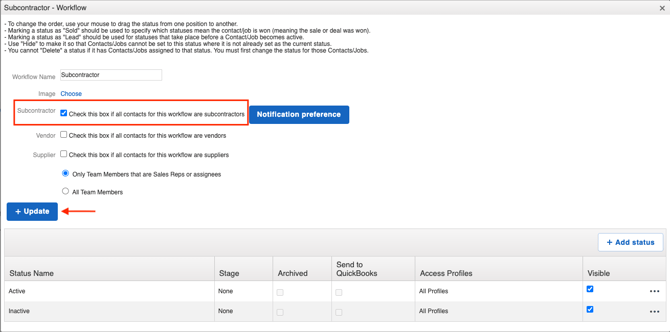
- Here, make sure the box next to "Check this box if all contacts for this workflow are subcontractors" is checked.
- Click Update after making any changes you need to, including if you want to add a Status.
To Add a New Subcontractor
- Click on your Home icon on the top of your JobNimbus page.
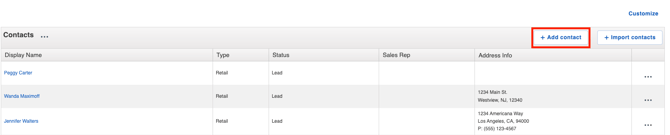
- Click on the + Add Contacts section at the top of your Contacts section.
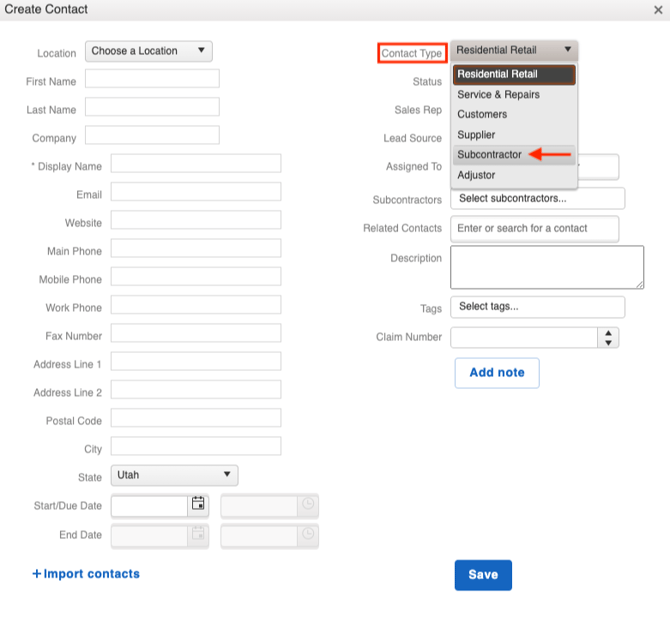
- Fill out your Subcontractor's details and change the Contact Type to Subcontractor.
- Select the Save button when you are done.
- Check out How Do I Create Jobs and Contacts in JobNimbus? to learn more about adding Contacts.
- Once you have a Subcontractor in your account, you can assign it to an existing Contact or Job by searching in the Subcontractors field on that customer's record.
- Tip: You can add multiple Subcontractors to a single Contact or Job.
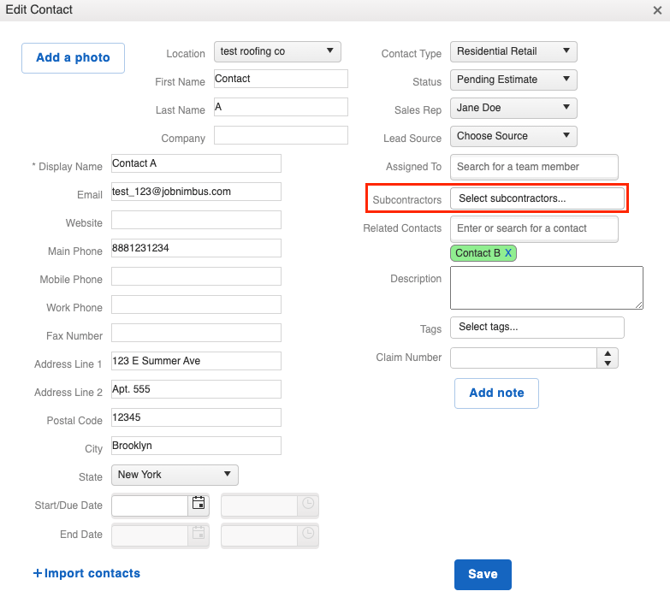
Adding a Subcontractor to the Subcontractors field assigns them and sends their assignment notifications, but it doesn't make them a Related Contact. They won't appear in the email recipient list, in Automation emails sent to related contacts, or as someone you can share the record with until you also add them as a Related Contact on that Job or Contact.
To add a Subcontractor as a Related Contact on a Job, open the Job and select the plus icon next to its related Contacts. On a Contact, select the three dots in the top right corner, select Edit, then enter the Subcontractor's name in the Related Contacts field and select Save. Check out What Does It Mean To Relate Contacts? to learn how to relate Contacts on Web and Mobile.
Check out our article about Subcontractor notification preferences for information on how to communicate with them.