![JN_Logo_Long-White@1x.png]](https://support.jobnimbus.com/hs-fs/hubfs/JN_Logo_Long-White@1x.png?height=40&name=JN_Logo_Long-White@1x.png)
Adding Form Responses
- To auto-populate a Form response, first make certain that you have created the custom Job field that you would like to have information filled in on the Job record.
- For instructions on how to create custom Job fields, click here.
- Once you have the Job field created, go to your settings and select the Forms option from the menu on the left.
- Create a Form question that matches the information you want entered into yoru custom Job field, then select the Map to record field option and select the Job Field you want the response to populate.
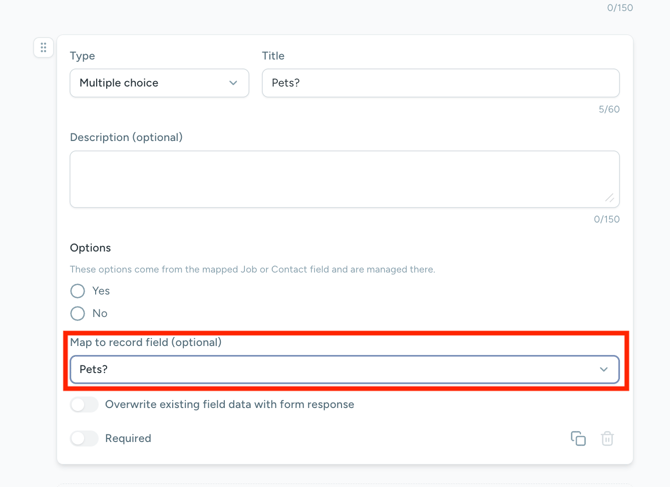
- Once you have created and saved your Form, select Templates from the Settings menu and either edit an existing template you want to add the information to or select Add template at the top of the page, then select Document.
- Select the Insert Template Field option on the document builder.
- Select the Job Custom Fields option from the list and select the custom field you want to auto-populate in your document.
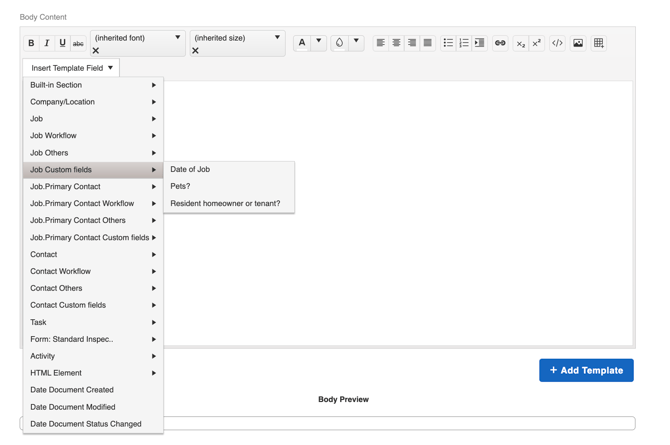
- The field from the form will now auto-populate in the document template and you may further customize your document as needed and save your Template by selecting the Add Template button at the bottom of the template builder window.