![JN_Logo_Long-White@1x.png]](https://support.jobnimbus.com/hs-fs/hubfs/JN_Logo_Long-White@1x.png?height=40&name=JN_Logo_Long-White@1x.png)
Notes
- Navigate to your desired Job page.
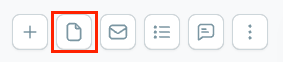
- On the Job Dashboard, select the note icon at the top of the page. This will bring up the Create Note window.
Here, you can:
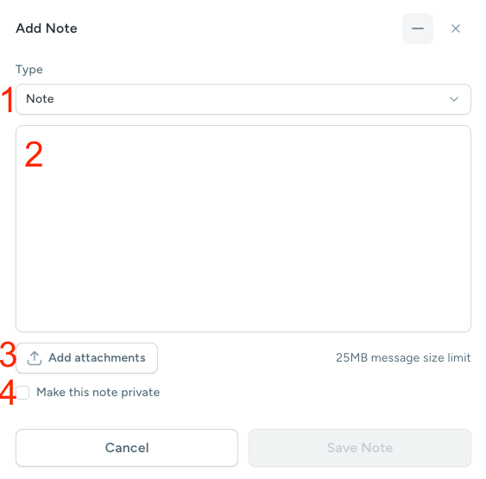
- Change the Note Type.
- The default options include Note, Phone Call, Email, Meeting Notes, Text Message, and Automation.
- "Text Message" will only work as intended via the mobile app, as this will take you to your mobile device's text messaging app to complete the process.
- The default options include Note, Phone Call, Email, Meeting Notes, Text Message, and Automation.
- Add text in the body of the note.
- Tag a team member in a note by typing the @ sign followed by their name to notify them about something that needs their attention.
- The team member will be notified according to the Notification Preferences they have configured within their Profile.
- Tag a team member in a note by typing the @ sign followed by their name to notify them about something that needs their attention.
- Include attachments in the note.
- Mark the note as private.
- This will allow only those with specific Access Profile permissions to see the note.
-
Select the Save Note button when you are finished.