![JN_Logo_Long-White@1x.png]](https://support.jobnimbus.com/hs-fs/hubfs/JN_Logo_Long-White@1x.png?height=40&name=JN_Logo_Long-White@1x.png)
Note: To use these features, your plan must include Analytics Enterprise. Contact your account representative to upgrade.
Building a Custom Report
-
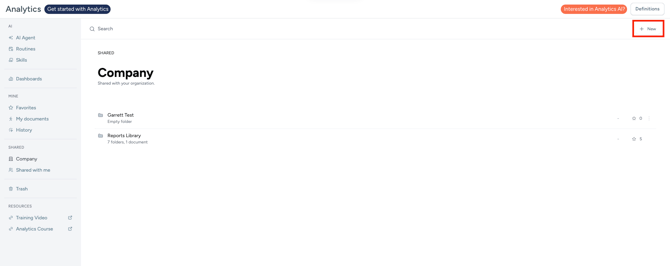
To build a custom report manually, click on the + New button in the top right corner.
-
This will take you to the report workbook.
-
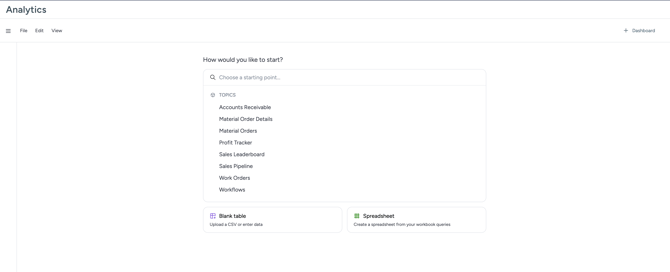
- Select the type of report you would like to build from the dropdown.
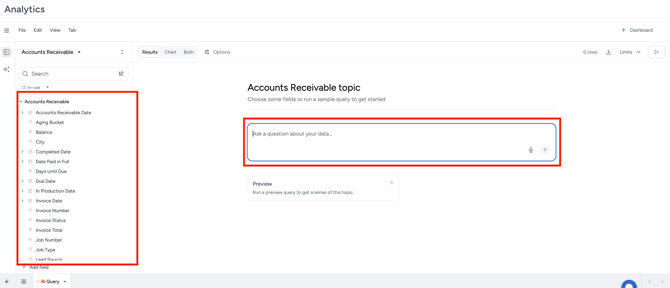
- On the next screen, you can select field options from the menu on the left, or type a prompt into the text box to use the AI to help you build a report.
-
- Fields that are included in other reports will appear in green text in the field menu.
- You can add additional pages to your report by clicking the + button in the bottom left of the screen.

- To save your report to your dashboard, click on the Dashboard button in the top right corner.
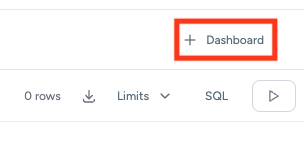
- Here, you can add your report to a folder to organize your reports. Click on the save button in the bottom right corner.
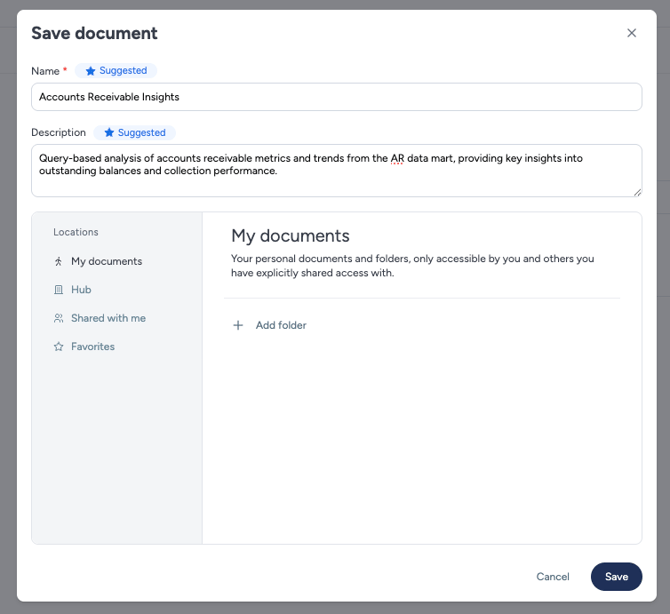
- Once your workbook is saved, it appears as it will in the dashboard.
- Return to editing the report by clicking the workbook button in the top right on the dashboard screen.
- Once you have finished editing your report, click publish at the top of the screen to make it available.
Building a Report with the AI Agent
- To build a report with the AI Agent, type a prompt into the text box.
- The AI will generate the report information which you can adjust through further prompts.
- For prompt ideas, click here.
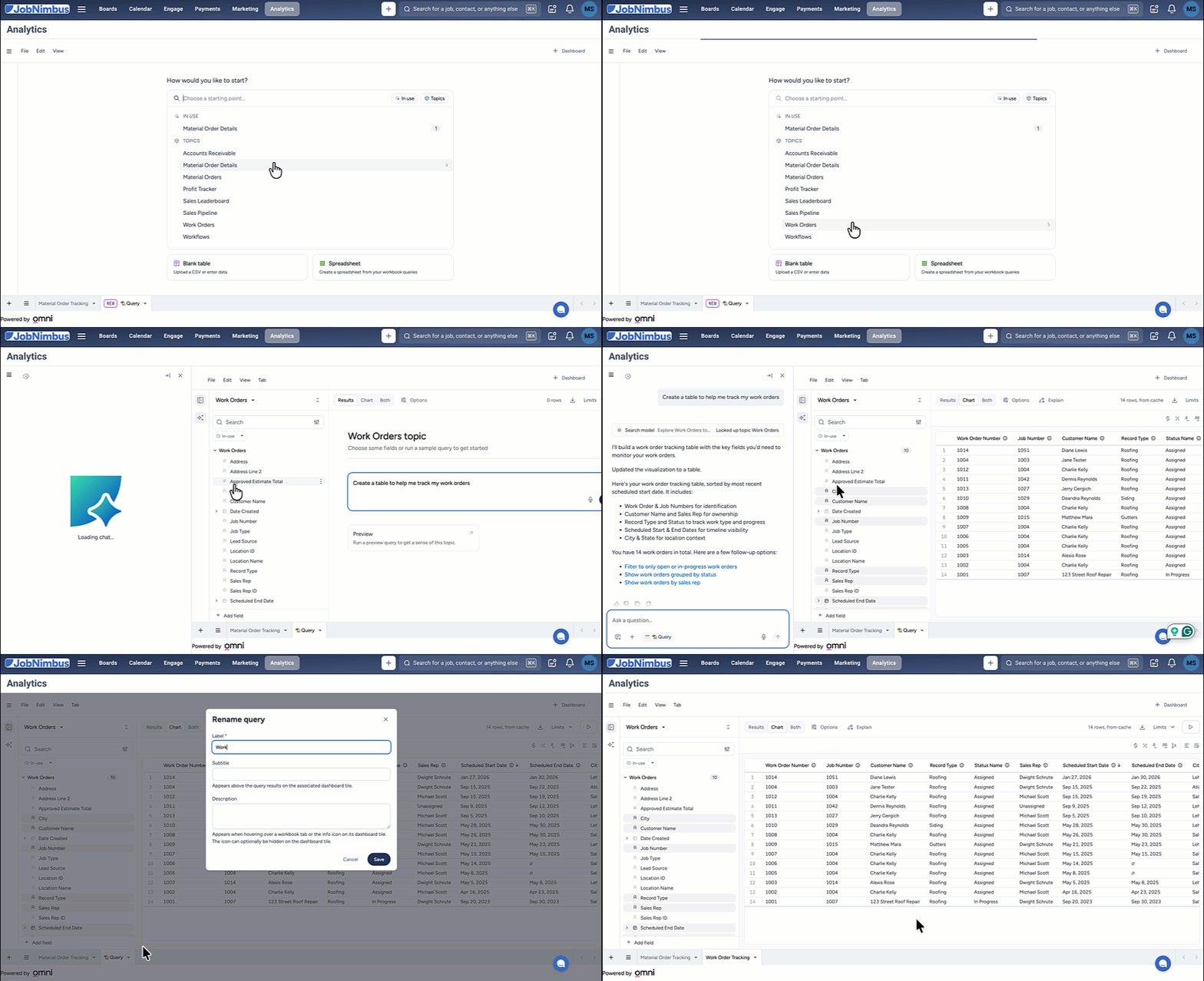
- To save your report to your dashboard, click on the Dashboard button in the top right corner and select the save button at the bottom of the window.