![JN_Logo_Long-White@1x.png]](https://support.jobnimbus.com/hs-fs/hubfs/JN_Logo_Long-White@1x.png?height=40&name=JN_Logo_Long-White@1x.png)
On This Page
Note: Only an admin on your account can turn Material Order Taxes and Delivery Fees on or off.
What It Does
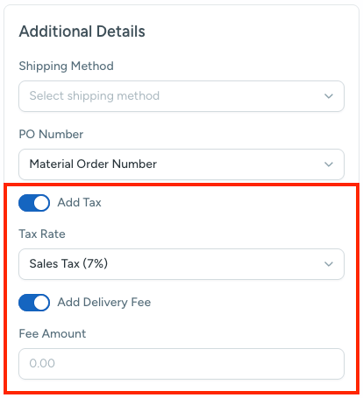
Material Order Taxes and Delivery Fees adds tax rate and delivery fee fields to a Material Order. Those values save onto the Material Order PDF and flow into Profit Tracker, so your material cost matches what you actually paid.
It allows you to select a tax rate from your company settings to calculate the material order total. Delivery fees must be entered manually as a flat fee.
Note: Check out How Do I Create a Material Order? to learn how to build one from scratch.
Turning It On or Off
The Material Order Taxes and Delivery Fees setting lives under Settings, on the Features tab.
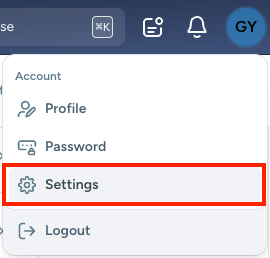
- Click your profile icon or initials in the top right corner.

- Select Settings from the dropdown menu.
- Open the Features tab.
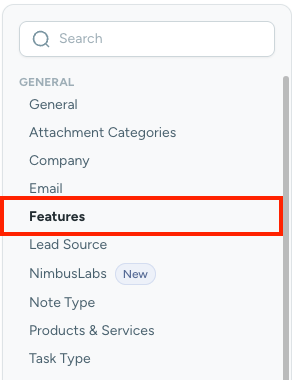
- Toggle the switch next to Material Order Taxes and Delivery Fee.

Note: If you had this feature turned on through Nimbus Labs before, it stayed on after the move. Turn it off or on the same way, from the Features tab.
Check out How Do I Enable Material Orders? to turn on the Material Orders feature itself, or How Can I Add Tax Information? to set up tax rates elsewhere in JobNimbus.
Tax Still Showing on an Existing Material Order
Turning Material Order Taxes and Delivery Fee off stops tax from being added to new Material Orders. A Material Order created before you disabled this feature may keep showing tax on its PDF until the record is corrected.
- Open the affected Material Order.
- Select the Edit Order button.
- Select Save Draft.
If the tax line does not clear on its own, contact JobNimbus Support for help correcting the record.