![JN_Logo_Long-White@1x.png]](https://support.jobnimbus.com/hs-fs/hubfs/JN_Logo_Long-White@1x.png?height=40&name=JN_Logo_Long-White@1x.png)
JobNimbus records the date each Job enters a Stage in its Workflow. These stage dates feed your Analytics reports. If a recorded date is wrong, an admin can override it on the Job.
Only team members with an Admin Role can override stage dates.
Overriding Stage Dates on Web
- Open the Job.
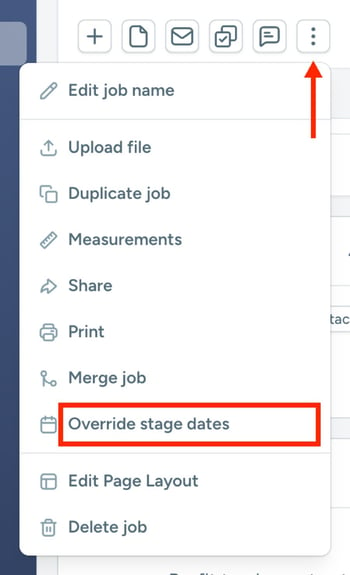
- Select the three dots at the right end of the icons under the Job name, then select Override stage dates.
- In the Stage Dates Overrides window, enter the correct date for each Stage you want to change.
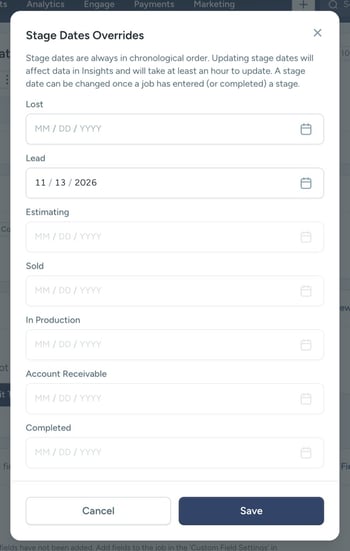
- Select Save.
You can only change the date for a Stage the Job has entered or completed. Fields for later Stages stay grayed out, and stage dates always stay in chronological order.
How Stage Date Overrides Hold When a Job Moves
An overridden stage date stays in place no matter where the Job moves next. If the Job moves forward or backward in its Workflow, JobNimbus keeps the date you entered and doesn't replace or clear it.
Overridden stage dates show in your Analytics and Insights reports. It can take up to an hour for a new date to appear.
To learn how Statuses are grouped into Stages, check out What Are Stages?