![JN_Logo_Long-White@1x.png]](https://support.jobnimbus.com/hs-fs/hubfs/JN_Logo_Long-White@1x.png?height=40&name=JN_Logo_Long-White@1x.png)
On This Page
- Unlocking a User's Account as an Admin
- Resetting Your Password on Web
- Resetting Your Password on Mobile
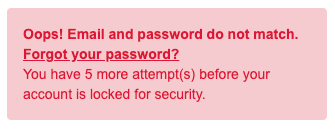
You will have five (5) total attempts to log in before your account is locked. The following warning will appear after your first failed attempt and will continue to count down for each unsuccessful attempt thereafter.
Unlocking a User's Account as an Admin
- If you are an account Admin and have Settings Access, you can reset the lockout for a user on your account who has been locked out.
- Click on your profile picture or initials in the top right corner, then select Settings.
- In the Settings menu on the left-hand side, scroll to the User Management & Subscription section and select the Team option.
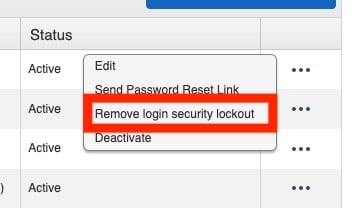
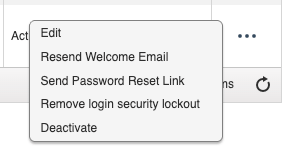
- Select the three dots to the right of the user in need of access and choose Remove login security lockout. This will give the team member five (5) additional attempts to log in.
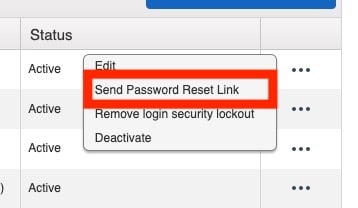
- If the user continues to get this error, they will need to reset their password. You can send them a password reset by clicking the Send Password Reset Link in the same menu as above.
- If a team member has never logged in and their original invitation never arrived, select Resend Welcome Email from the same three dots menu. If they have already logged in at least once, use Send Password Reset Link instead.
- Users can also reset their own passwords by following the steps in the sections below.
Note:
-
If you do not have Settings Access, please reach out to your account admin (typically an owner or office admin) to have them unlock your account.
- All Password Reset Links will expire after 2 hours.
Resetting Your Password on Web
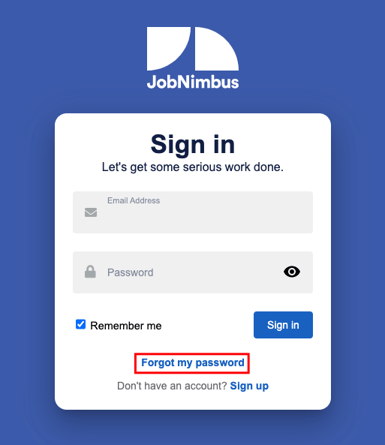
- Navigate to www.app.jobnimbus.com
- Click on Forgot my password.
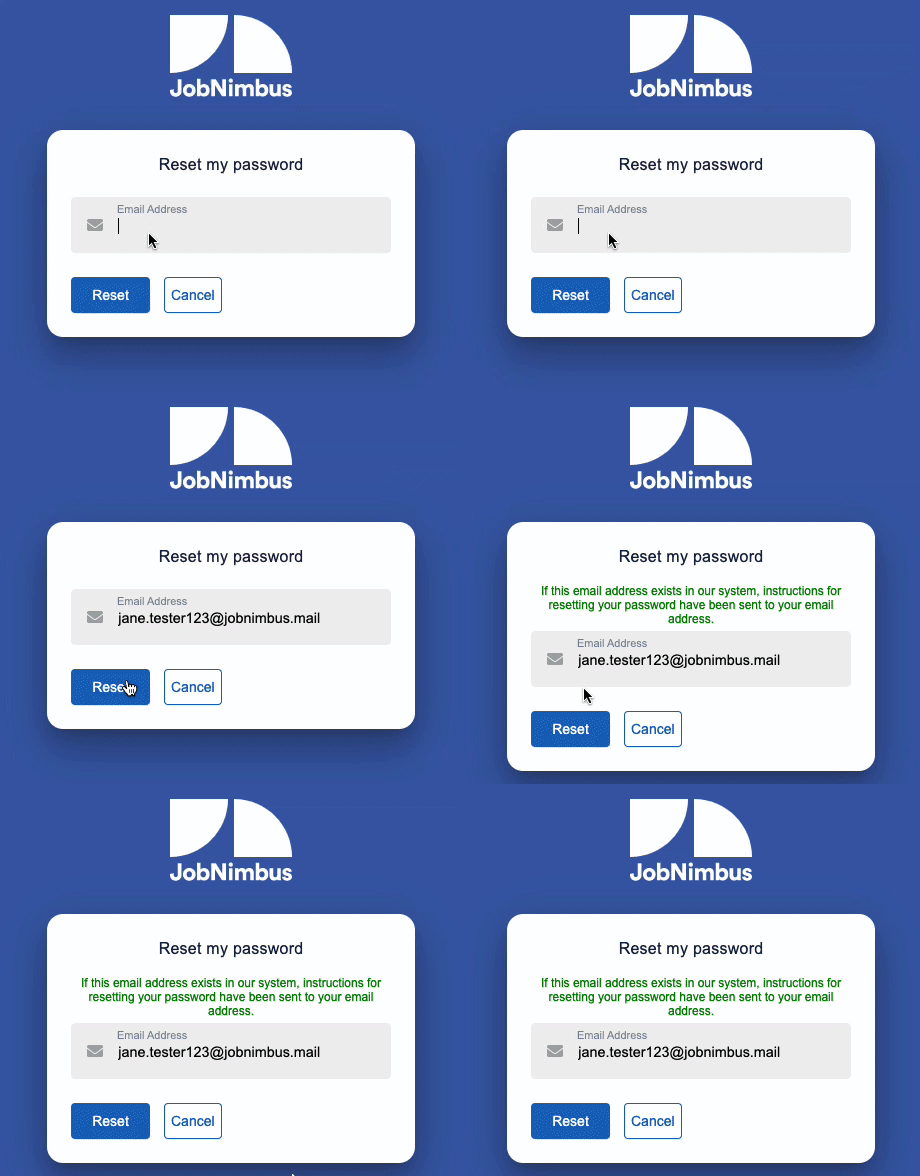
- Fill out your email address in the given field. If the address exists in the system, an email will be sent with a link to complete your reset.
-
If you do not see an email come through, make sure to check the spelling of the email address to confirm there are no mistakes.
-
If you still do not have an email, check your Spam and Junk inbox folders, as well as any "Promotions" folders (Gmail).
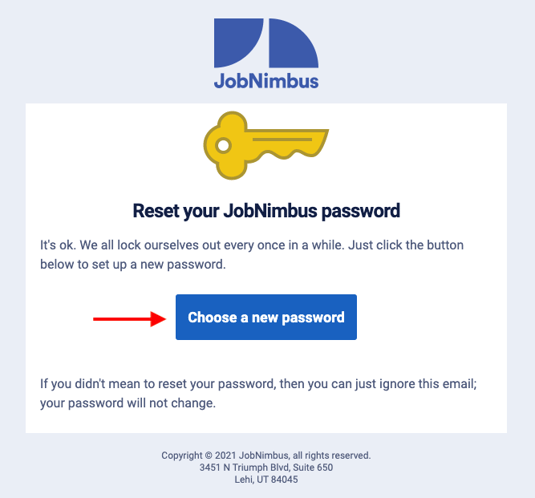
- Your email will look like this. Select Choose a new password.
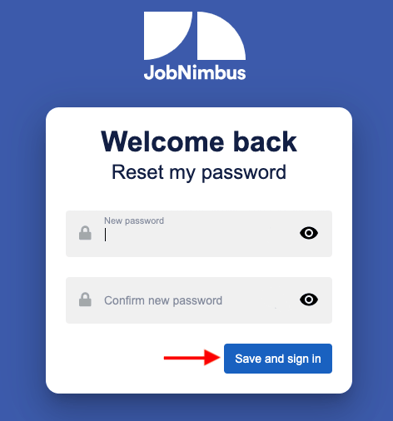
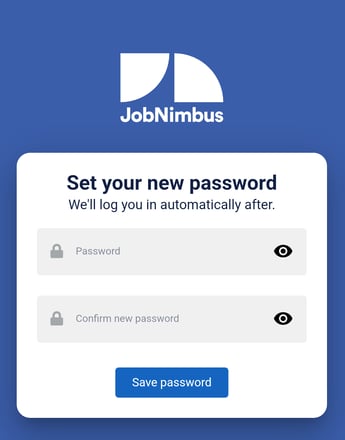
- Once you are redirected to the page below, enter your new password and confirm it, then click the blue Save and sign in button.
Note:
- Make sure you are typing in your password correctly. Remember, it is case sensitive.
- Do not share your password with anyone. JobNimbus Support will never ask for your password or credit card information. We only need your login email address to assist you.
- If you receive the error below, it means that you have previously used the password you are attempting to set your new password to and you must choose a different password.
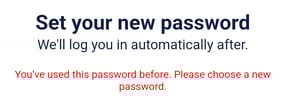
- This measure is in place to protect the security of your account and cannot be overridden.
- This measure is in place to protect the security of your account and cannot be overridden.
- All Password Reset Links will expire after 2 hours.
Resetting Your Password on Mobile
- On the login screen of the Mobile App, select Forgot my password.
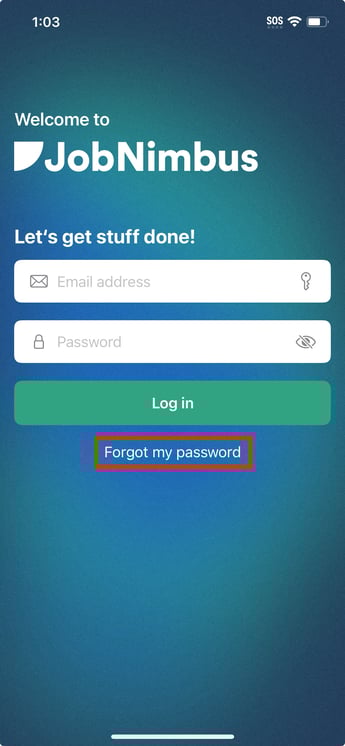
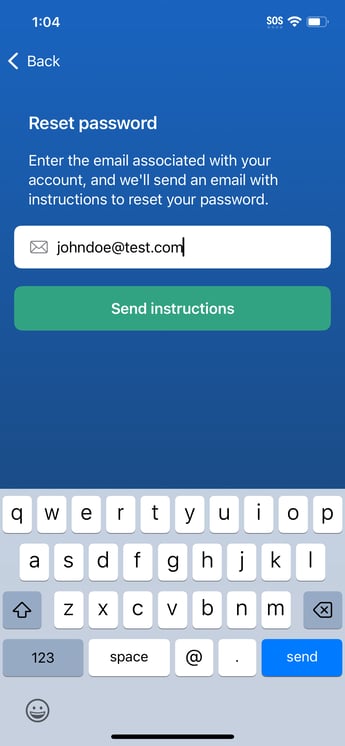
- Type your login email address into the field when prompted, then click the Send Instructions button once you've confirmed the email is correct.
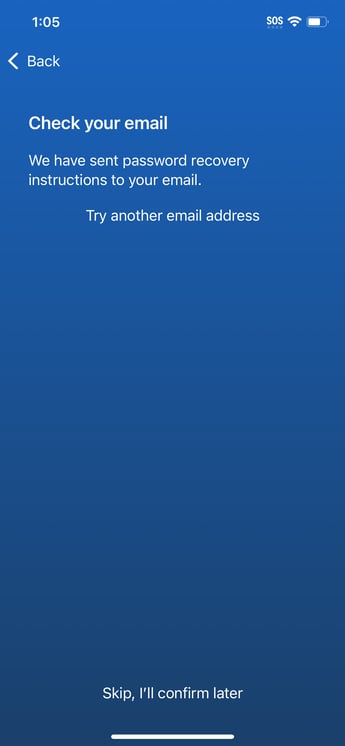
- You can then open your preferred email app, or decide to skip this step and confirm later.
If you do not see an email come through:
- Make sure to check the spelling of the email address to confirm there are no mistakes.
- Check your Spam/Junk inbox folders, as well as any "Promotions" folders (ex: Gmail).
- Select "Try another email address" at the bottom of the screen pictured above if you think you may have misspelled the email or entered the incorrect email.
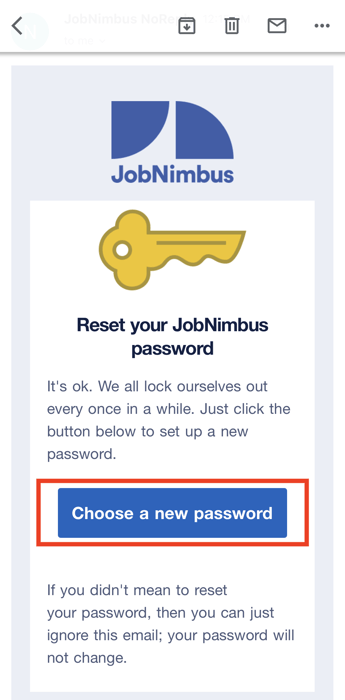
- Once you receive the email, click the Choose a new password button.
- Create your new, unique password and then click Reset Password. This will automatically log you into your JobNimbus web account. Make certain that you close the browser version once you are logged in and login to your mobile app using your new password.
If the Reset or Welcome Email Never Arrives
Note: A reset or welcome email that never arrives is often a bounce, not a typo or a spam filter, especially on a brand new address or one recently recreated for a returning employee.
- Check that the email address is spelled correctly, then check the Spam, Junk, and Promotions folders.
- Select your profile icon or initials in the top right corner, then select Settings from the dropdown menu. This step requires Settings Access.
- Select User Management & Subscription, then the Team option.
- Select the three dots next to the team member's name, then choose Send Password Reset Link or Resend Welcome Email.
If the email is still bouncing after a resend, the address may be on a bounce or suppression list. Only Support can clear it, and it can take a few hours to take effect after they do.
Note:
-
Do not share your password with anyone. JobNimbus Support will never ask for your password or credit card information. We only need your login email address to assist you.
-
Ensure that you enter your password accurately. Remember, it is case-sensitive, so you must use the exact uppercase or lowercase letters.
- If you receive the error below, it means that you have previously used the password you are attempting to set your new password to and you must choose a different password.
- This measure is in place to protect the security of your account and cannot be overridden.
-
All Password Reset Links will expire after 2 hours.