![JN_Logo_Long-White@1x.png]](https://support.jobnimbus.com/hs-fs/hubfs/JN_Logo_Long-White@1x.png?height=40&name=JN_Logo_Long-White@1x.png)
On This Page
- How Progress Payments Work
- Applying for Progress Payments
- Sending a Loan With Payouts
- Getting Paid in Two Payouts
How Progress Payments Work
Progress Payments splits one Wisetack loan into two payouts. Your customer applies once, then releases each payout: the first after they accept their loan offer, and the second once the work is done.
- Loans must be between $1,000 and $25,000. Loans that aren't split keep the standard $500 to $65,000 range.
- The first payout can be up to 50% of the loan. The second payout is the rest.
- Each payout must be at least $500.
- Wisetack charges its 3.9% merchant fee on each payout, so the total is still 3.9%. On a $1,000 loan split in half, that's $19.50 per payout, or $39 total.
- Your customer starts repaying the first payout 30 days after releasing it, and the second once it's released.
Applying for Progress Payments
Progress Payments needs its own approval from Wisetack, separate from your Wisetack account. Wisetack looks for:
- $5 million or more in annual revenue, or five or more years in business
- A guarantee, cancellation, and refund policy
- A low credit card dispute rate
- Good standing with Wisetack
You'll upload proof of your revenue or years in business, your current customer contract, and three months of credit card processing statements.
This task requires Settings access and a connected Wisetack account. Check out How Do I Connect My Wisetack Account? to connect one first.
- Click on your profile icon or initials in the top right corner. Then, select Settings from the dropdown menu.
- In the Settings menu on the left-hand side, under Financials, select Financing.
- Select Manage on the Wisetack card.
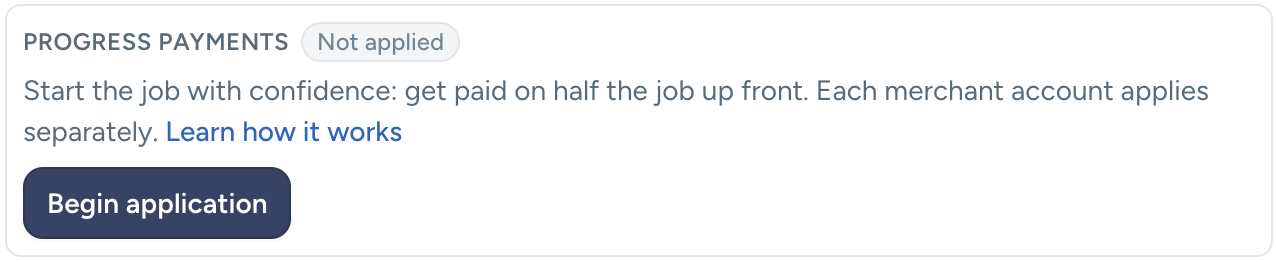
- On the Progress Payments card, select Begin Application.
Sending a Loan With Payouts
You send a loan with payouts the same way as any other loan, with one added step. After you enter the loan amount, select Add payouts, then enter a percentage in What percentage is required upfront? The Payout 1 and Payout 2 amounts fill in. On the Mobile App, tap Add payouts in the same spot. Check out How Do I Track Financing and Get Paid on a Job? for the full steps to send a loan.
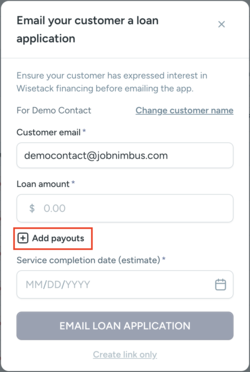
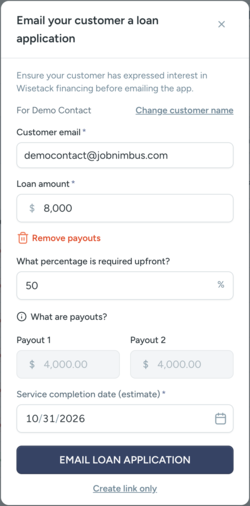
Add payouts appears only after Wisetack approves your account for Progress Payments and the loan is $1,000 or more.
Getting Paid in Two Payouts
Your customer releases the first payout after they accept their loan offer. Once the work is done, open the loan and select Request Payment to have your customer confirm the Job is complete and release the second payout.
The Payouts section on the loan shows each payout's amount, and a paid payout shows a Disbursed badge. Your customer can decline a single payout, even after the first one has paid.
To learn more about Progress Payments, please visit their website here: Wisetack Progress Payments.