![JN_Logo_Long-White@1x.png]](https://support.jobnimbus.com/hs-fs/hubfs/JN_Logo_Long-White@1x.png?height=40&name=JN_Logo_Long-White@1x.png)
On This Page
For Web
To Send a Signature Request or Sign In-Person
- Once you are ready to send your Estimate for signing, navigate to the Job where you created the Estimate and click on the Estimates tab.
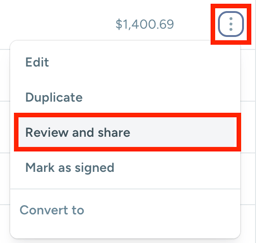
- Click on the three dots on the far right of the desired Estimate record and select the Review and Share option.
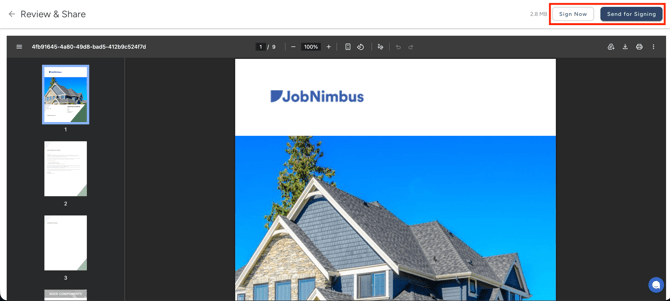
- To sign the Estimate directly on your device (such as if the customer is currently with you), select the Sign Now button. To email the estimate to the signers, click Send for Signing.
- Once an Estimate is sent for signing, the unsigned copy will appear in the Documents tab on the Job as a PDF. Once it is signed, the signed copy will save as an additional PDF.
Note:
- Please be aware that signature links expire after 7 days.
-
The PDF will display the signature time in GMT (Greenwich Mean Time) but is displayed on the document details in your local time zone.
For iOS
To Send a Signature Request
- Navigate to the desired Estimate and tap the Review & Share button.
- Tap the Send for Signing button and choose which recipient you would like to send it to.
- You can choose between the Primary Contact, Related Contacts (including Subcontractors), and assigned Team Members.
- Select the Send button to send the Estimate to the selected Contacts' email addresses.
Note:
- Please be aware that signature links expire after 7 days.
- Remember, Estimates cannot be edited once a request is sent.
To Sign an Estimate
- Navigate to the desired Estimate and tap the Review & Share button.
- Tap Sign now.
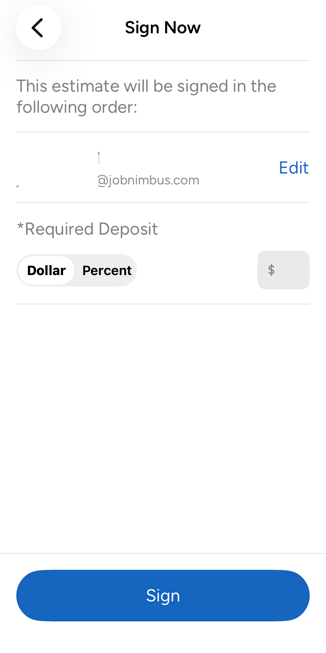
- On the next screen, confirm the signees and enter your desired deposit amount.
- Select the Sign button.
- On the next screen, the document will appear for review.
- Here, the customer can select the Estimate option that they would like to move forward with.
- Scroll down to the bottom of the page and select Save and Sign.
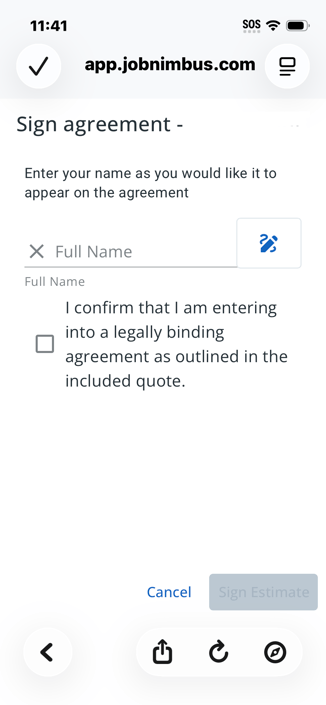
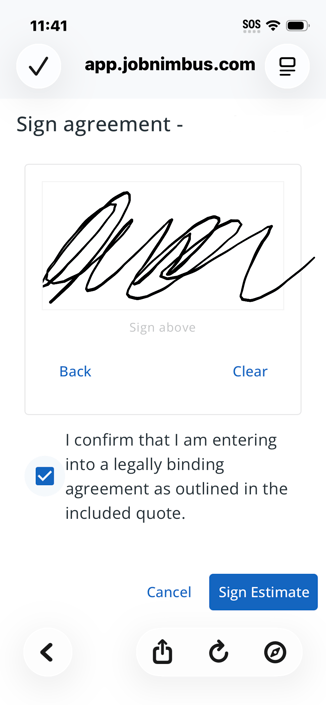
- Tap the Full Name text box to type in the name of the signee or tap the pen icon to sign manually.
-
Once the signature is entered, check the confirmation box and tap the Sign Estimate button.
- Once the Estimate has been signed, the Estimate status will update to Approved.
- Once an Estimate is sent for signing, the unsigned copy will appear in the Documents tab on the Job as a PDF. Once it is signed, the signed copy will save as an additional PDF.
Note: When all requested signatures have been completed, the signed document will be emailed to each of the recipients.
For Android
To Send a Signature Request
- Navigate to the desired Estimate and tap the Review & Share button.
- Tap the Send for Signing button and choose which recipient you would like to send it to and enter a Deposit amount.
- You can choose between the Primary Contact, Related Contacts (including Subcontractors), and assigned Team Members.
- Select the Send button to send the Estimate to the selected Contacts' email addresses.
Note:
- Please be aware that signature links expire after 7 days.
- Remember, Estimates cannot be edited once a request is sent.
To Sign an Estimate
- Navigate to the desired Estimate and tap the Review & Share button.
- Tap Sign now.
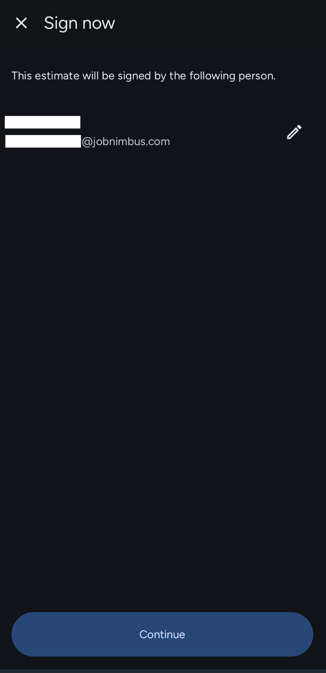
- On the next screen, confirm the signees and enter your desired deposit amount.
- Select the Continue button at the bottom of the screen.
- On the next screen, the document will appear for review.
- Here, the customer can select the Estimate option that they would like to move forward with.
- Scroll down to the bottom of the page and select Save and Sign.
- Tap the Full Name text box to type in the name of the signee or tap the pen icon to sign manually.
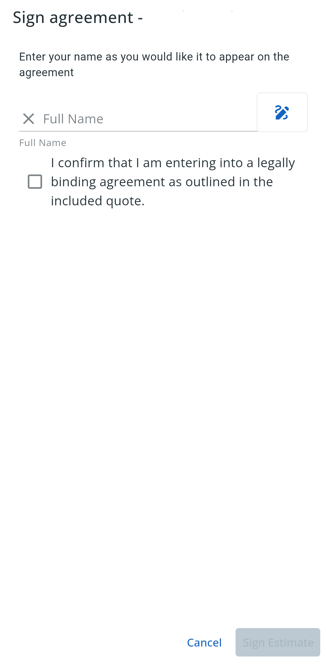
- Once the signature is entered, check the confirmation box and tap the Sign Estimate button.
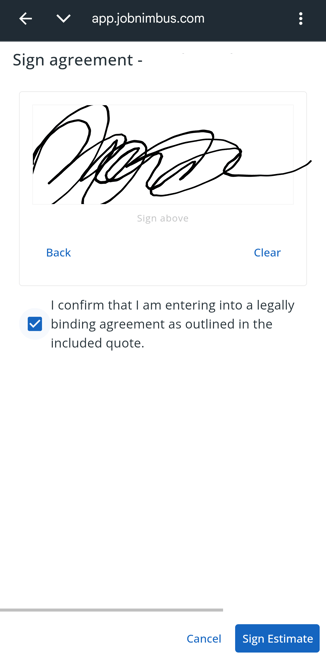
- Once the Estimate has been signed, the Estimate status will update to Approved.
- Once an Estimate is sent for signing, the unsigned copy will appear in the Documents tab on the Job as a PDF. Once it is signed, the signed copy will save as an additional PDF.
When all requested signatures have been completed, the signed document will be emailed to each of the recipients.
Signing Order
-
When an estimate is sent for signature with multiple signers, the email is delivered sequentially rather than to everyone at once:
-
The primary signer receives the estimate first.
-
Once the primary signer signs, the second signer is automatically emailed the estimate.
-
The cascade continues through each additional signer in order until all parties have signed.
-
-
This means additional signers will not see the request until each preceding signer has completed their signature.
Note: This cascade applies to estimates. Document-template signatures behave differently and do not enforce a signing order.